


Smooth game dynamics, AAA-quality graphics and open beta. Yes, that’s the combination that’ll send your FPS plummeting, but with our best Palworld settings guide, you’ll be able to play the game that’s taking the gaming world by storm, even on a low-end PC!
Palworld, which was seen as a “meme” project in its development phase due to its similarity to Pokemon, has achieved success far beyond expectations. At the time of writing, according to the data on Steam Charts, the game has taken Steam by storm with 1,570,002 players and everyone wants to try it.
Although similar in concept to Nintendo’s Pokemon, the game is definitely not optimized yet, with its open world nature, farming, and every element you would want from an RPG.

What are the best Palworld settings?
The best Palworld settings for maximum FPS will depend on your specific hardware and what kind of visual fidelity you’re comfortable with. However, here are some general recommendations for both high-end and low/mid-end PCs:
Best Palworld settings for high-end PCs
- Presets: Use custom settings instead of presets to fine-tune performance
- Screen Mode: Fullscreen is usually best
- Resolution: Set it to your monitor’s native resolution
- Max FPS: No Limit for the highest possible frame rate
- VSync: Off to avoid potential lag or stuttering
- Motion Blur: Off for clearer visuals during movement
- DLSS: Set DLSS to performance mode if you have an Nvidia RTX GPU
- Anti-Aliasing: TAA (Temporal Anti-Aliasing) is a good option
- View Distance, Grass Detail, Shadows, Effects Quality: Set these to “High” or “Epic” if you
- have the GPU power
- Post-Processing: Adjust individual settings like Bloom and Sharpening to your taste
Best Palworld settings for low/mid-end PCs
- Presets: Use custom settings to optimize performance
- Screen Mode: Fullscreen is usually best
- Resolution: Lower the resolution if needed, especially in crowded areas
- Max FPS: Set it to your monitor’s refresh rate for VRR/G-Sync displays, or a slightly lower value for others
- VSync: On if you experience tearing, off for higher FPS
- Motion Blur: Off or Low to avoid performance impact
- Anti-Aliasing: TAA or FXAA are lighter options than TAA
- View Distance, Grass Detail, Shadows, Effects Quality: Set these to “Medium” or “Low” for a balanced experience
- Post-Processing: Disable unnecessary effects like Bloom
Since we are done with explaining the best Palworld settings you may apply in-game, now let’s focus on maximizing your FPS by changing stuff in your operating system!

Here are some changes you can make in Windows for a smoother experience:
Close unnecessary background applications
Background programs can hog resources, so close any you don’t need while playing Palworld. Right-click the taskbar and select “Task Manager” to see what’s running.
Disable startup programs
Some programs automatically start with Windows and can impact performance. Use Task Manager to disable unnecessary ones under the “Startup” tab.
Change power settings
Windows has different power plans that prioritize performance or battery life. Go to Control Panel > Power Options and choose “High performance” for gaming.
Update drivers
Make sure your graphics drivers and Windows are up to date. Outdated drivers can cause performance issues. Use Windows Update for Windows and visit the manufacturer’s website for graphics drivers.
Disable visual effects
Windows has visual effects that can be CPU-intensive. Go to System Properties > Advanced > Settings > Performance and choose “Adjust for best performance”.
Low priority for background processes
Right-click Palworld in Task Manager and set its priority to “Low” to give priority to the game over background tasks.
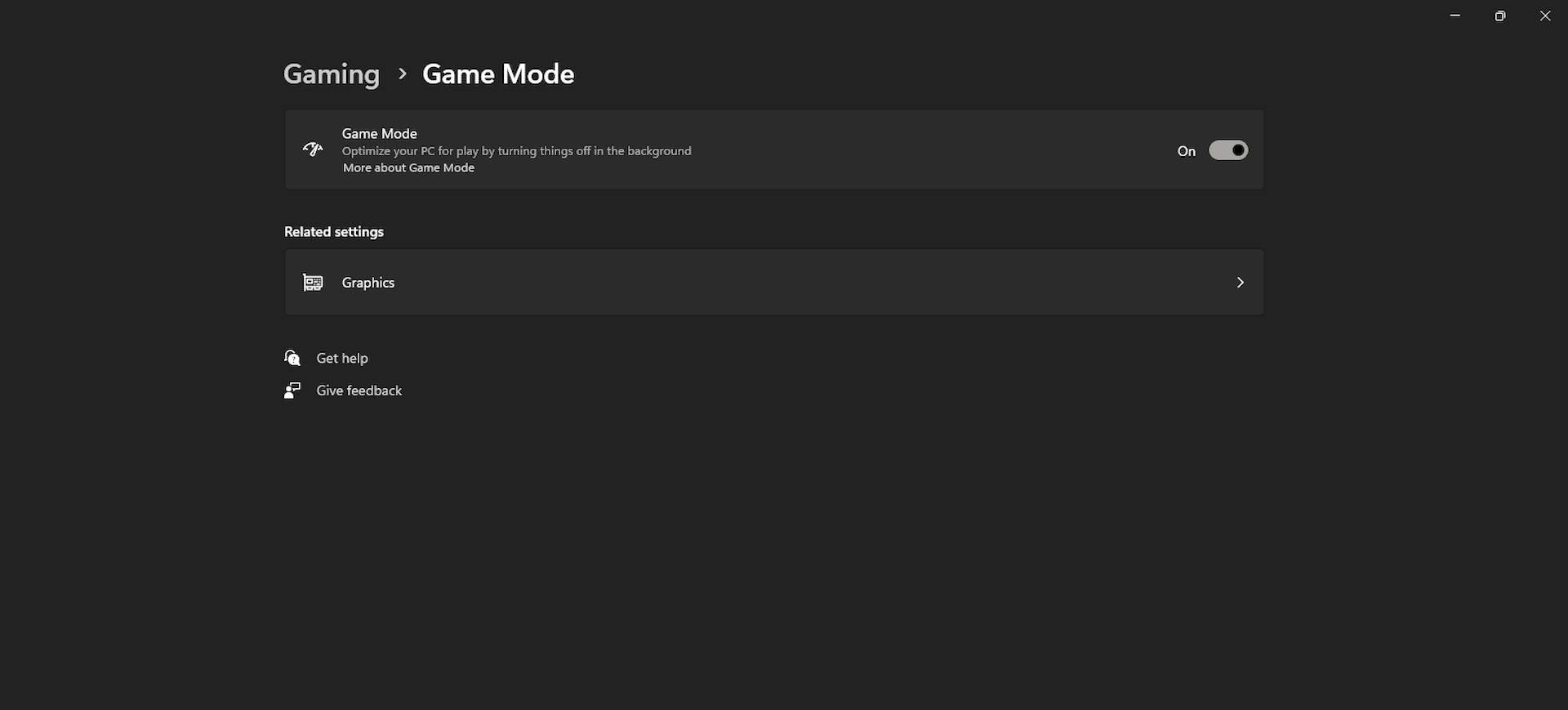
Game Mode
Windows 10 and 11 have a Game Mode that optimizes system resources for gaming. Press Win+G and enable Game Mode when playing Palworld.
If switching to Game Mode somehow lowered your FPS, here is how to disable game mode on Windows 11.
Disable graphics card features
Some graphics cards have features like anti-aliasing or sharpening that can impact performance. Open your graphics card control panel and disable them for Palworld.
After applying the settings in our Best Palworld settings guide and making the changes on Windows, we think you will be able to drop below 60 FPS even with an old PC. We hope you found our article useful and are ready to dive into the exciting world of Palworld with more fluency!
Featured image credit: Pocketpair Japan.


