

TechBriefly
  • Tech
  • Business
  • Crypto
  • Science
  • Geek
  • How to
  • About
    • About TechBriefly
    • Terms and Conditions
    • Privacy Policy
    • Contact Us
    • Languages
      • 中文 (Chinese)
      • Dansk
      • Deutsch
      • Español
      • English
      • Français
      • Nederlands
      • Italiano
      • 日本语 (Japanese)
      • 한국인 (Korean)
      • Norsk
      • Polski
      • Português
      • Pусский (Russian)
      • Suomalainen
      • Svenska
No Result
View All Result
TechBriefly
Home How to
How to install APKs in Chromecast with Google TV?

How to install APKs in Chromecast with Google TV?

Kerem GülenbyKerem Gülen
25 November 2020
in How to
Reading Time: 2 mins read
Share on FacebookShare on Twitter

How to install APKs in Chromecast with Google TV? One of the main differences between the Android version of a phone and the one we use on TVs is the number of applications available. There are more and more applications available each day but sometimes we want to use an app, which we know works with Android TV, but is not available.

  • How to uninstall a Chrome extension or plugin?
  • How to change the Wi-Fi that Google Chromecast connects?
  • How to use Kodi with Chromecast?

That’s when we want to install an APK directly. Many people don’t know how to do it with Chromecast, but with Google TV it is really easy. We have to perform two actions.

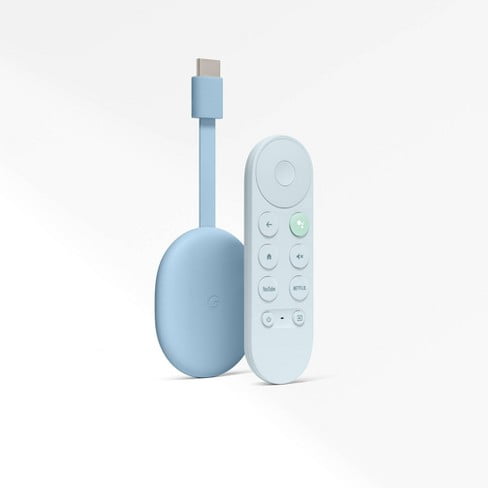
How to install APKs in Chromecast with Google TV?

Before choosing which APKs to install, we have to activate the development permissions. To do this we go to the Settings, section that is just below our avatar in the upper right corner of the interface.

  1. There, we go to the System option.
  2. Within that section, we go to the second option, Information.
  3. There we have to go to the Android TV OS compilation option and click several times until we get the message that we are developers.
  4. Once this step is finished, let’s go to another section of the Settings.
How to install APKs in Chromecast with Google TV?

Once that is done we have to give permission to each application so we can install apps. To do this we return to the Settings and select the Privacy option. There we go to Security and restrictions, where we click on the option Unknown sources. That’s where we have to mark the application that we want to install.

As you can see, once we know the procedure it is a simple task, but navigating aimlessly through the system’s options can be much more tedious. This way, you’ve learned how to install APKs in Chromecast with Google TV.

Tags: Android TVAPKappapplicationsChromecastgoogle tvhow toinstallstep by steptutorialuninstall
ShareTweet
Kerem Gülen

Kerem Gülen

Kerem from Turkey has an insatiable curiosity for the latest advancements in tech gadgets and a knack for innovative thinking.With 3 years of experience in editorship and a childhood dream of becoming a journalist, Kerem has always been curious about the latest tech gadgets and is constantly seeking new ways to create.As a Master's student in Strategic Communications, Kerem is eager to learn more about the ever-evolving world of technology. His primary focuses are artificial intelligence and digital inclusion, and he delves into the most current and accurate information on these topics.

Related Posts

How to tell if your iPhone or Android phone is carrier unlocked

How to tell if your iPhone or Android phone is carrier unlocked

16 January 2026
How to apply screen protectors without air bubbles

How to apply screen protectors without air bubbles

16 January 2026
How to check if someone read your message on iPhone or iPad

How to check if someone read your message on iPhone or iPad

16 January 2026
A guide to viewing calculation history on iOS 18

A guide to viewing calculation history on iOS 18

16 January 2026
Please login to join discussion

LATEST

OpenAI rockets $250 million into Altman’s Merge Labs brain-AI bridge

Bluesky opens “Live Now” badges to all users to lure Twitch creators

Capcom reveals Resident Evil: Requiem classic mode and ink ribbons

How to tell if your iPhone or Android phone is carrier unlocked

Paramount+ slams subscribers with first price hike since 2024

Ashley St. Clair sues xAI over Grok deepfakes

Samsung launches instant-play cloud streaming in Mobile Gaming Hub update

Netflix secures Sony Pictures first-to-stream rights

How to apply screen protectors without air bubbles

How to check if someone read your message on iPhone or iPad

TechBriefly

© 2021 TechBriefly is a Linkmedya brand.

  • Tech
  • Business
  • Science
  • Geek
  • How to
  • About
  • Privacy
  • Terms
  • Contact
  • | Network Sites |
  • Digital Report
  • LeaderGamer

Follow Us

No Result
View All Result
  • Tech
  • Business
  • Crypto
  • Science
  • Geek
  • How to
  • About
    • About TechBriefly
    • Terms and Conditions
    • Privacy Policy
    • Contact Us
    • Languages
      • 中文 (Chinese)
      • Dansk
      • Deutsch
      • Español
      • English
      • Français
      • Nederlands
      • Italiano
      • 日本语 (Japanese)
      • 한국인 (Korean)
      • Norsk
      • Polski
      • Português
      • Pусский (Russian)
      • Suomalainen
      • Svenska