
The beloved multiplayer fighting game usually takes players on a rollercoaster of epic battles. Yet, there are cases like the Brawlhalla not working issue when the ride hits a few bumps in the form of technical glitches.
Whether you’re grappling with crashes, startup issues, or pesky bugs, worry not—there are solutions to get you back into the digital fray.
Why is Brawlhalla not working and how to fix it?
If you find yourself stuck in a loop of crashes or struggling to get the game going, don’t fret. We’ve got some tried-and-true tips to kickstart your gaming experience. Begin by ensuring your graphics card drivers and other essential software are up-to-date. Swing by the official website of your graphics card manufacturer, whether it be Nvidia, AMD, or Intel, and grab the latest drivers, tailored for optimal gameplay. Pro tip: Stick with stable versions, steering clear of beta releases to dodge potential bugs.
In the realm of good practices, remember to keep DirectX updated. You can snag the latest version from the official Microsoft website, ensuring smooth sailing for your gaming endeavors.
Verify game files
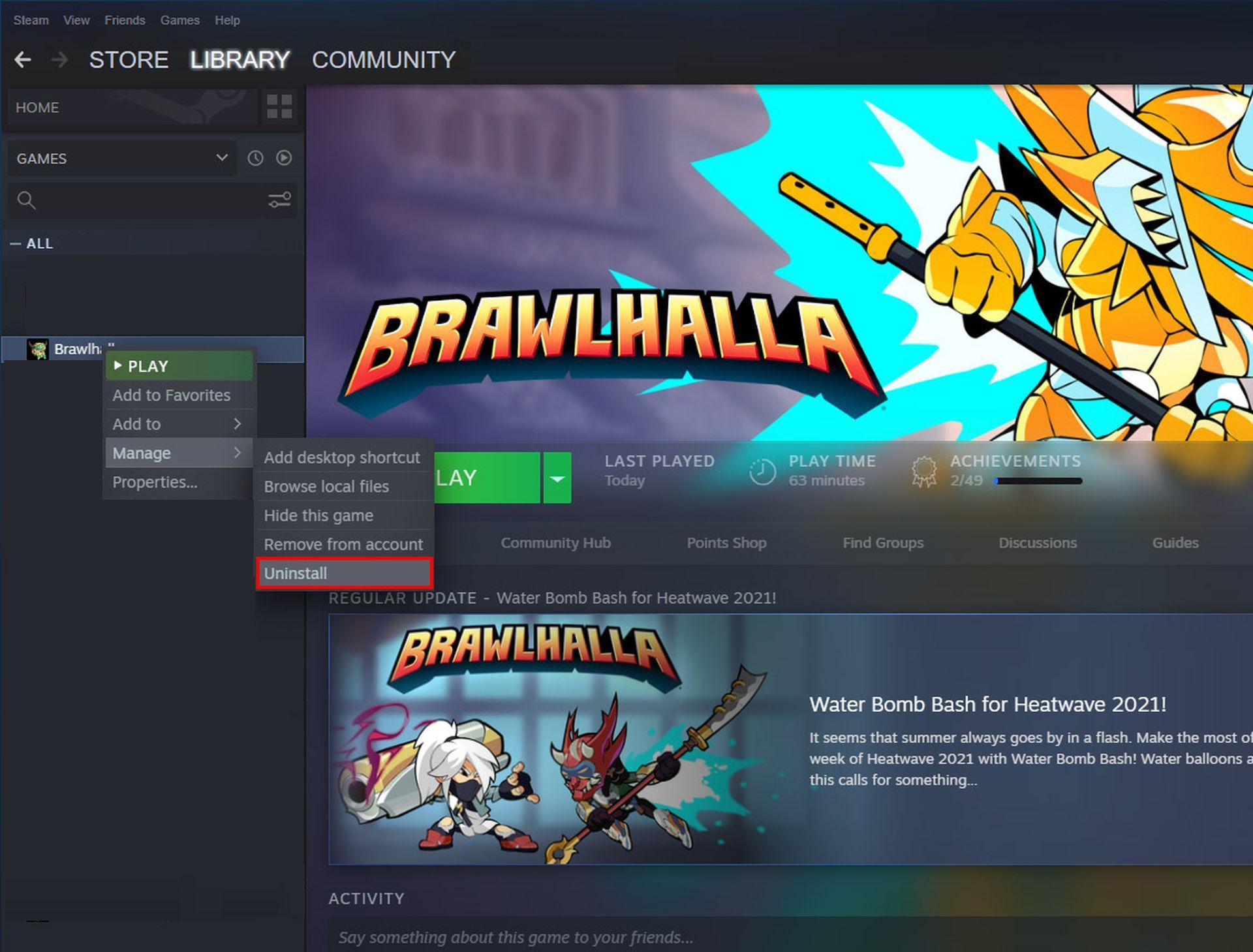
Sometimes, glitches can arise due to corrupted game files. That’s why your next move should be having Steam confirm the integrity of these files. If they’re the culprit, the Steam client will roll up its sleeves and handle the repair. Here’s the drill:
- Fire up the Steam client.
- Head over to the Library tab, then right-click on Brawlhalla and select Properties.
- Navigate to Local Files and give a click on Verify integrity of game files.
- Give it a moment while the verification runs its course.
- Once the process wraps up, launch the game anew and see if that pesky problem has been shown the exit door.
When Brawlhalla refuses to start
It’s a frustration we’ve all encountered: a game that just won’t launch. But fear not, for we’ve got a bag of tricks to help you overcome this hurdle. If installation errors haunt your gaming dreams, consider a fresh installation after disabling your antivirus. Sometimes, those pesky protective programs mistake game files for unwanted intruders. Additionally, be mindful of the characters and numbers in the game’s installation path—it’s a recipe for success.
Running the game as an administrator and toggling compatibility mode can also work wonders in coaxing your game to life.
Troubleshooting crashes, low FPS, and freezes
Are crashes, low FPS, or freezes dampening your gaming enthusiasm? Let’s tackle these head-on. Begin by updating your video card drivers, a move that can significantly boost your game’s frames per second. For a holistic perspective on your system’s resource utilization, peek into the Task Manager (press CTRL + SHIFT + ESCAPE). If any resource-hogging processes are caught in the act, give them the boot.
Venturing into the game’s graphics settings is another savvy move. Turn off anti-aliasing and experiment with lowering post-processing settings. This can lighten the load on your system while preserving a visually pleasing experience.
Desktop crashes
Crashes to the desktop can dampen any gaming session, but we’ve got a few aces up our sleeves to fix the Brawlhalla not working issue. Tinker with graphics quality settings, potentially easing the strain on your PC. It’s worth checking for updates, as many games auto-update on startup with an internet connection.
The black screen issue
When the dreaded black screen strikes, your GPU might be the culprit. Ensure your video card meets the minimum requirements and has the latest drivers installed. If your hardware checks out, try toggling to another window (ALT + TAB) and then returning to the game screen.
Getting rid of installation problems
Installation blues? Don’t let them get the best of you. Validate sufficient HDD space, bearing in mind that the installation path should sport only Latin characters and numbers. Allocate at least 2 gigabytes of free space on your system drive, a golden rule for smooth operation.
When tech troubles rain on your Brawlhalla parade, don’t despair. Armed with this arsenal of solutions, you’ll be back in the arena in no time.
However, if the workarounds don’t work for you and you decide changing games for a while, make sure to check out our article on the best PS5 boxing games.
Featured image credit: Nintendo