

iMessage is a popular messaging service among Apple users, however, encountering an iMessage Signed Out error can be frustrating, as it prevents you from sending or receiving iMessage on your Apple device and benefiting free and encrypted communication through texts, photos, and videos sent over wireless or cellular-data networks.
In this article, we’ll explore the possible reasons behind this error and provide you with a detailed step-by-step guide to resolve it.
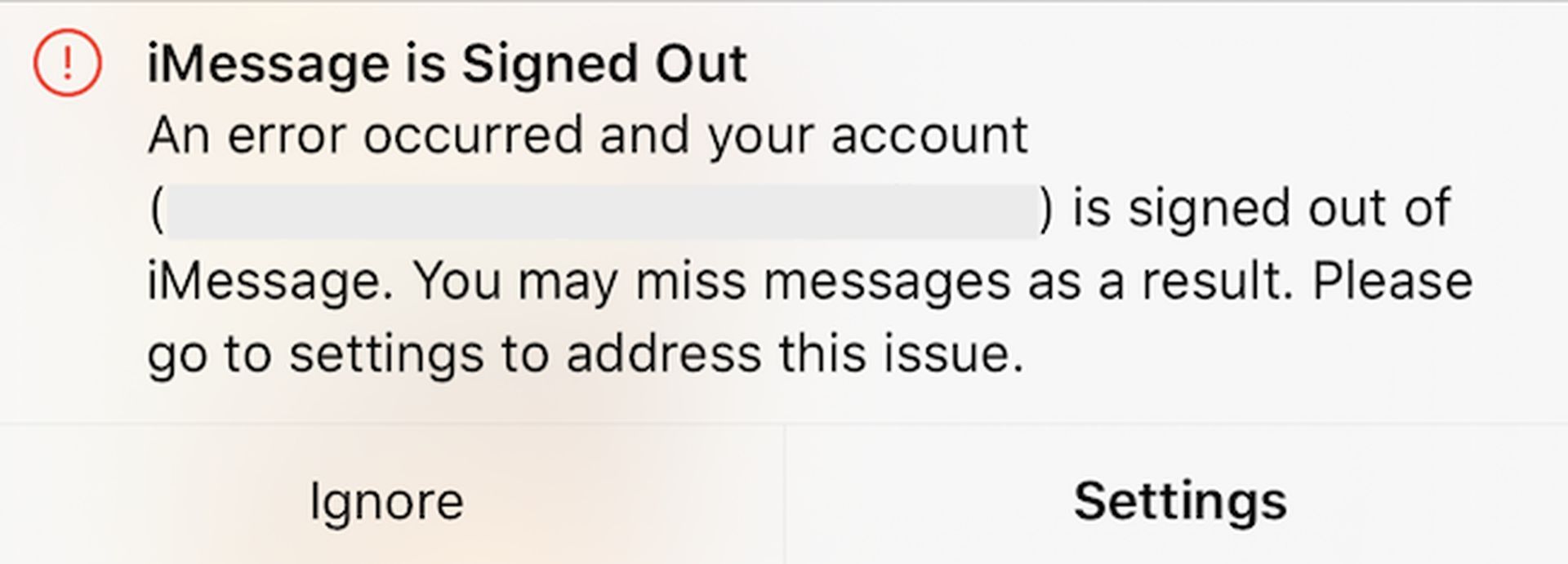
What causes the iMessage Signed Out error?
Before diving into the solutions, let’s explore the common factors that might lead to the iMessage Signed Out error:
- Wi-Fi connection issues: iMessage requires an active Wi-Fi connection to function properly. If your Wi-Fi connection is weak or unstable, it could trigger the iMessage Signed Out error.
- Cellular data connection issues: iMessage also relies on cellular data for communication. If you experience cellular data problems or network issues, it can affect iMessage functionality.
- Other factors: Various factors can contribute to the error, including software glitches, incorrect iPhone settings, improper iMessage configurations, or even temporary issues with Apple servers.
How to fix the iMessage Signed Out error?
Although it is not clear which exact cause is responsible for the iMessage Signed Out error, there are many potential fixes that you can try. Now, let’s delve into the detailed troubleshooting steps to resolve the iMessage Signed Out error on your iPhone:
Restart your iPhone
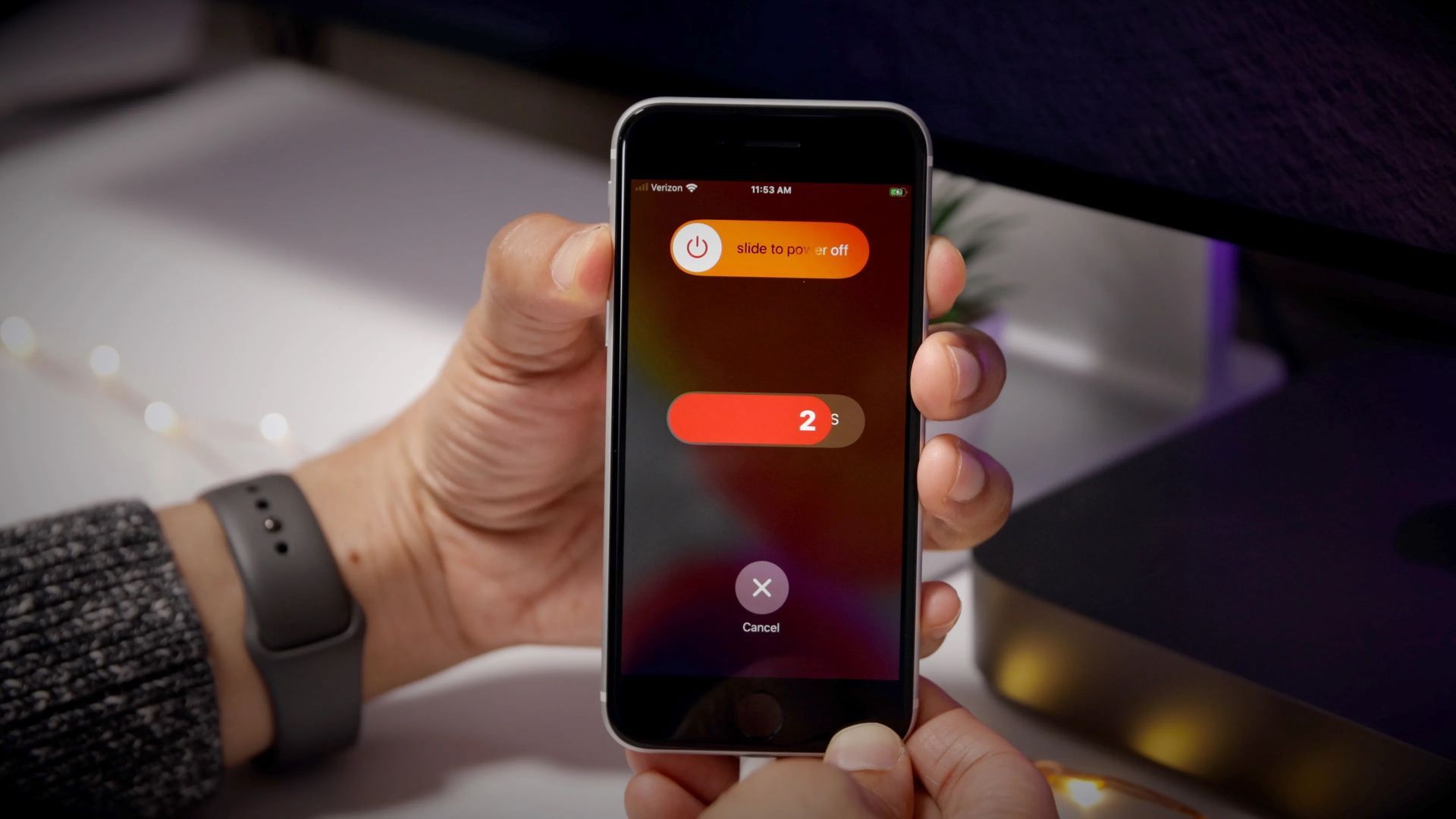
One of the simplest yet effective solutions is to restart your iPhone. Restarting your device can clear temporary glitches and potentially fix in-app or connectivity issues. To do this, power off your iPhone, wait for a few seconds and then turn it back on. Check if the iMessage Signed Out error persists.
Check if iMessage is enabled
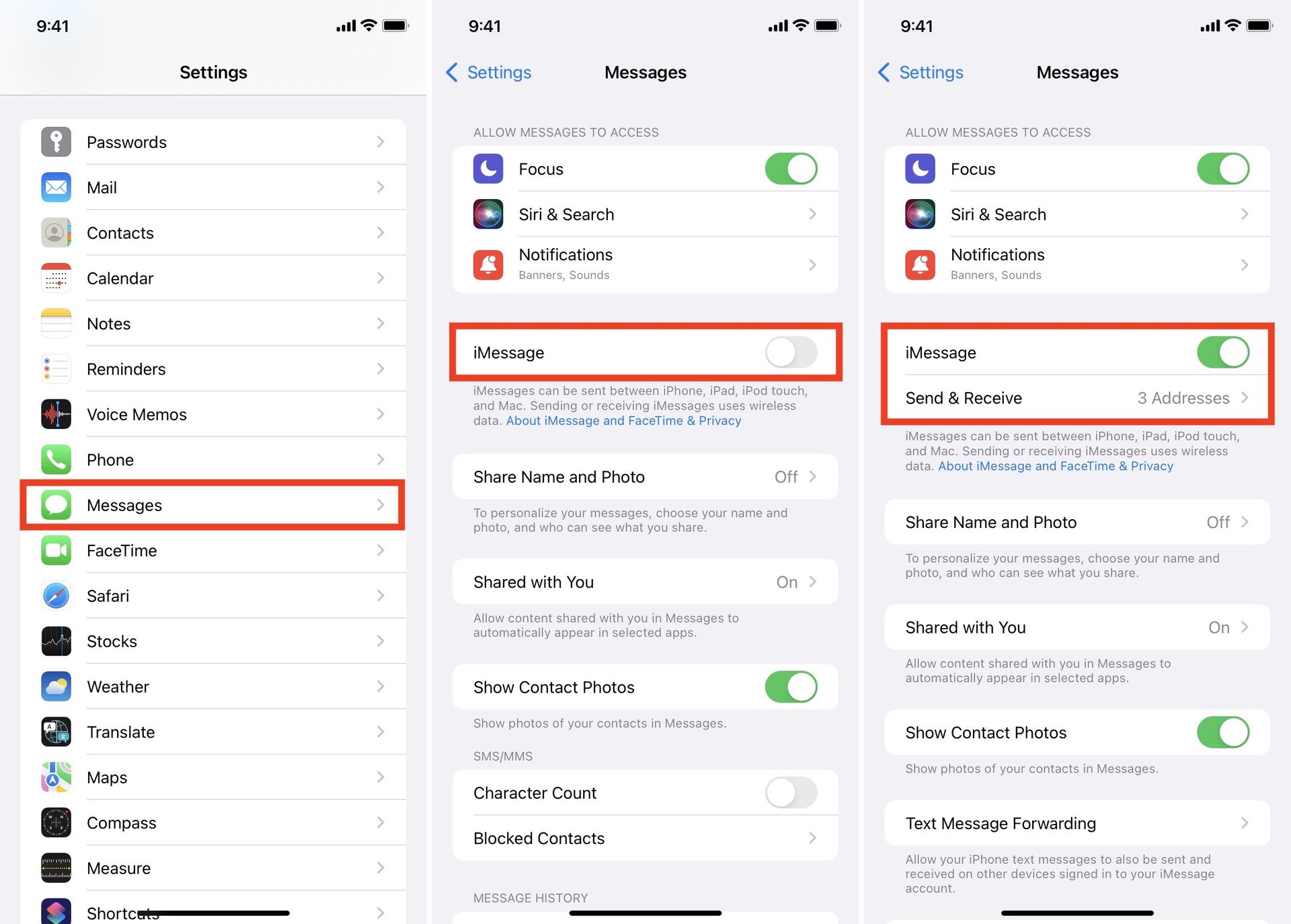
If the iMessage Signed Out error continues even after restarting your iPhone, it’s essential to verify whether iMessage is enabled on your device. There’s a possibility that it might have been inadvertently disabled. To check this;
- Go to Settings > Messages.
- Ensure that the toggle switch for iMessage is enabled (green) and your phone number is listed underneath.
Disable and re-enable iMessage
If iMessage is already enabled but the error continues, try a soft restart by disabling and re-enabling iMessage on your device. To do this;
- Navigate to Settings > Messages.
- Turn off iMessage.
- Restart your device.
- Go back to Settings > Messages and enable iMessage again.
Check your Wi-Fi connection and credentials
If you have verified that iMessage is already enabled and the error message persists, you can attempt a soft restart by disabling and then re-enabling iMessage on your device. To do this;
- Verify that your Wi-Fi connection is working correctly by going to Settings > Wi-Fi.
- If your network credentials have recently changed due to a new router or password update, make sure to update them accordingly.
Reset network settings
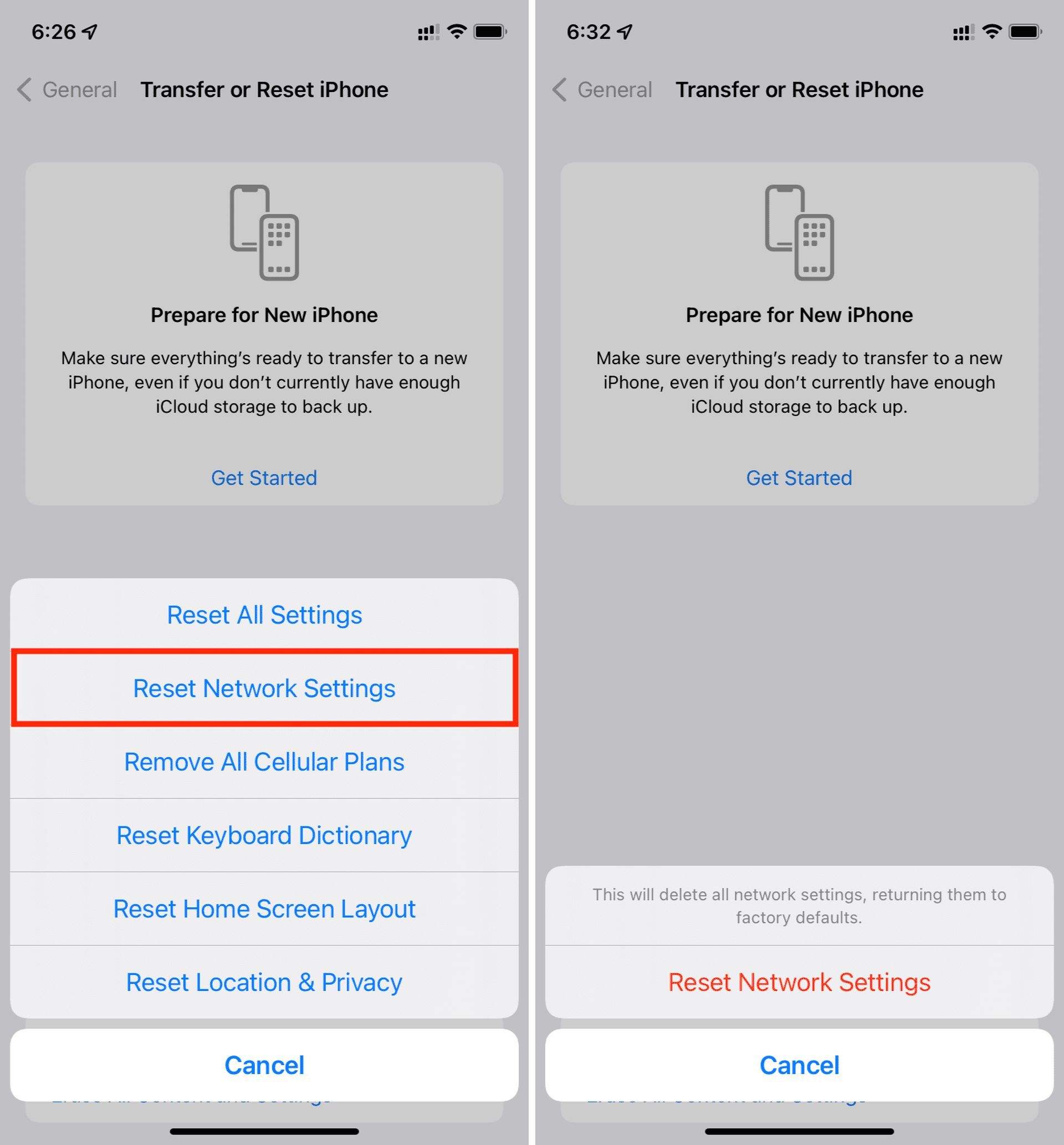
Resetting network settings will restore your phone’s saved Wi-Fi networks and Bluetooth connections to their factory default settings. To avoid losing your Wi-Fi network credentials, it is essential to write them down before proceeding with the reset.
- Before proceeding, jot down your Wi-Fi network credentials.
- Go to Settings > General > Transfer or Reset iPhone > Reset > Reset Network Settings.
- Reconnect to your Wi-Fi network after the reboot.
Check your mobile data connection
The iMessage Signed Out error can also be triggered by a poor internet connection from your cellular network. Ensure that you have an active mobile data connection and that your carrier or service provider is online.
To check your mobile data connection, simply observe the signal bar for signal strength. Keep in mind that in some countries or during extreme weather conditions, you may experience weak or no signal.
Check your SIM card
The iMessage Signed Out error can indeed be triggered by a poor internet connection from your cellular network. It’s crucial to ensure that you have an active mobile data connection and that your carrier or service provider is online.
To check your mobile data connection, simply check the signal bar for signal strength on your device. However, keep in mind that in some countries or during extreme weather conditions, you may experience weak or no signal, which could also contribute to the error.
Check your Apple ID settings
Your Apple ID serves as the gateway to all things Apple and is essential for using iMessage. To avoid any issues, double-check that you are entering your Apple ID correctly. This will ensure seamless access to your Apple services, including iMessage.
- Your Apple ID is essential for using iMessage.
- Ensure that you have entered your Apple ID correctly.
- Go to Settings > Messages > Send and Receive and sign in to iMessage if your Apple ID is not listed.
Change your password
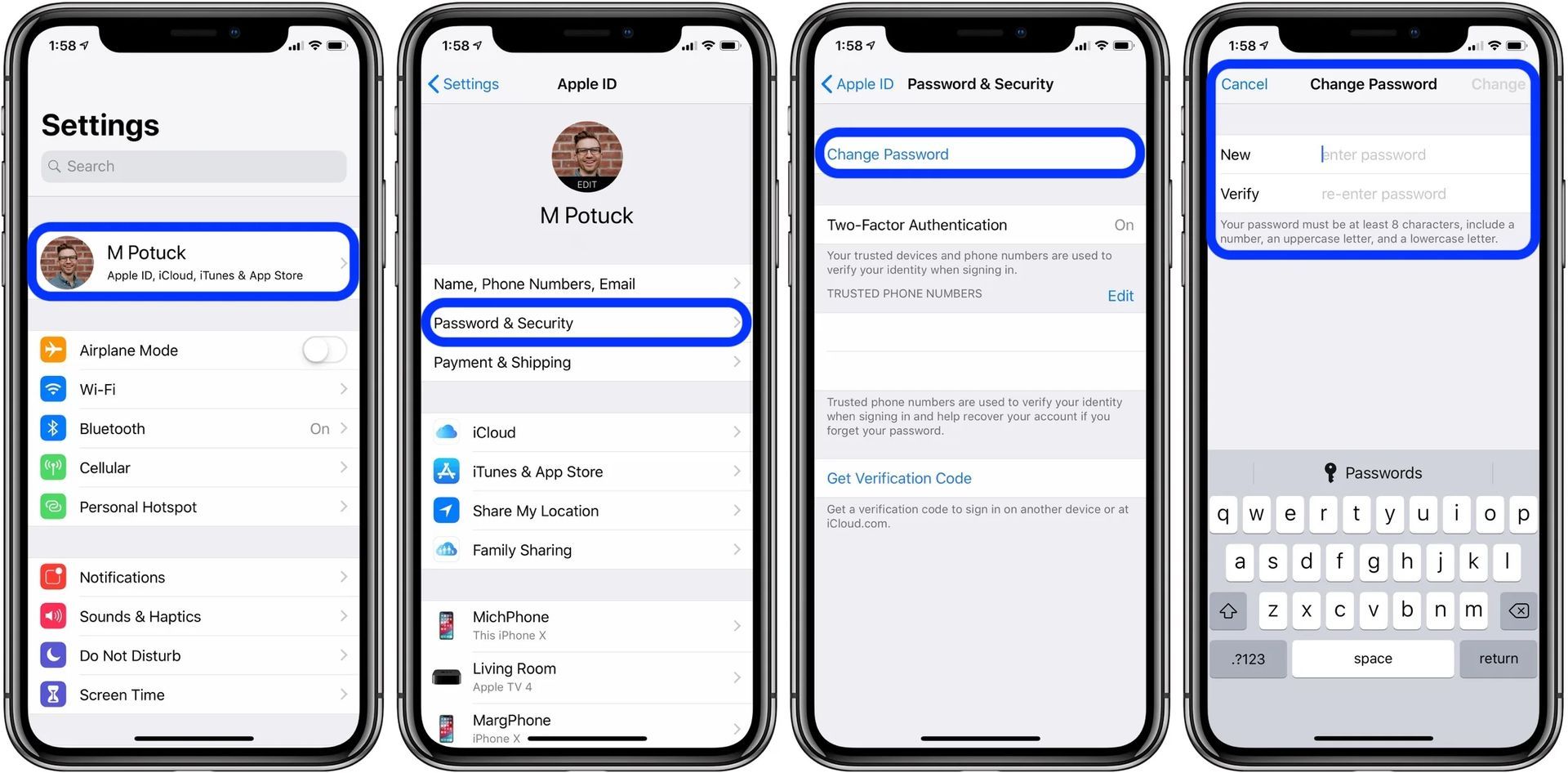
If you have verified that your Apple ID is correctly entered and the iMessage Signed Out error persists, the issue could be related to your password. It’s possible that someone is attempting to hack your account. In such cases, it’s crucial to take immediate action to secure your Apple ID and protect your account from unauthorized access.
- Go to Settings > Name/Profile > Apple ID > Change Password.
- After changing your password, sign in to iMessage again.
Activate two-factor authentication
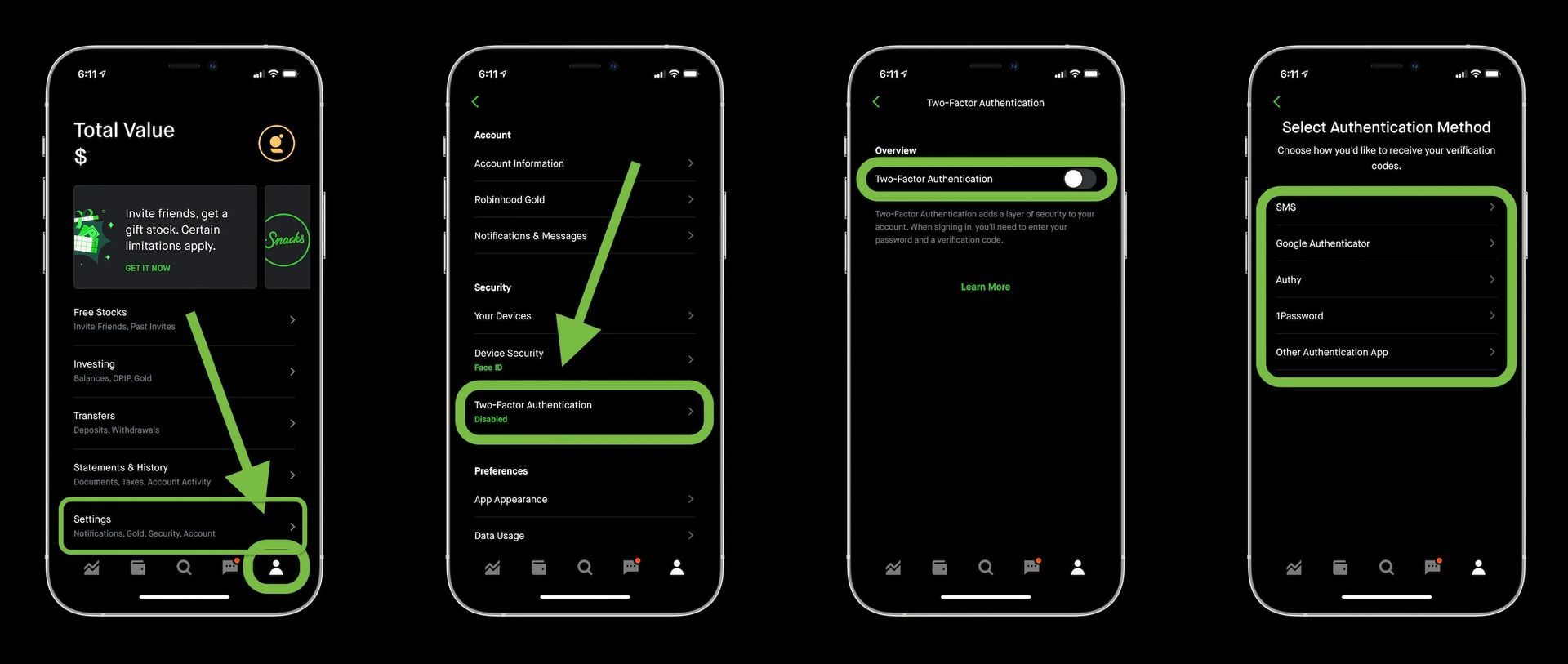
Enabling two-factor authentication can indeed serve as an effective deterrent against hackers attempting to access your Apple account and causing the iMessage Signed Out error. Two-factor authentication adds an extra layer of security by requiring a second verification method, typically a unique code sent to your trusted device when signing in to your account.
- Go to Settings > Your Apple ID > Password & Security
- Toggle on Two-Factor Authentication.
Check the iMessage server status
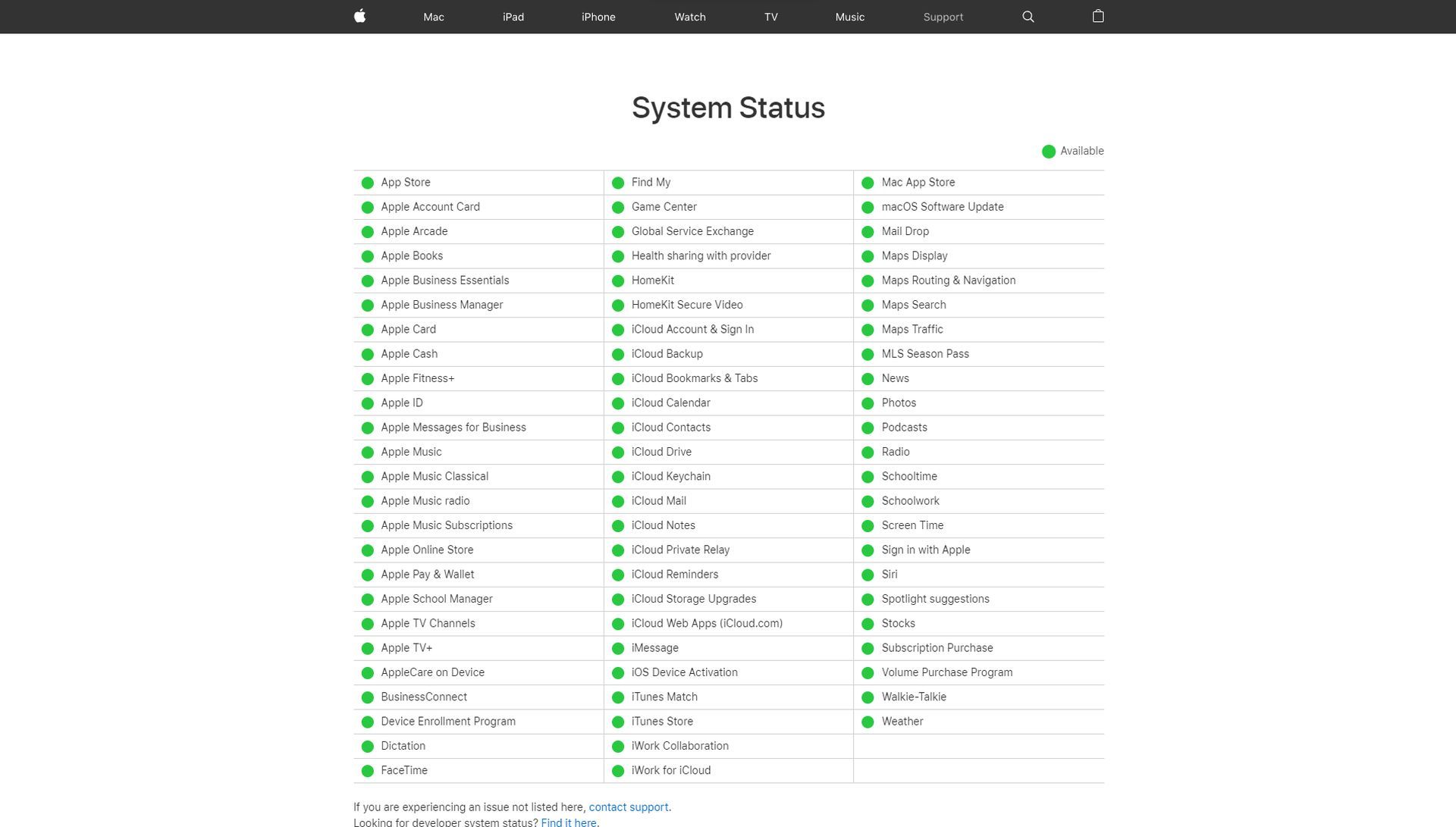
To ensure the iMessage service is functioning correctly, visit the Apple System Status page. This page provides real-time information about the status of Apple services. Check if iMessage is marked as available (green dot) or unavailable (red dot).
Update iOS
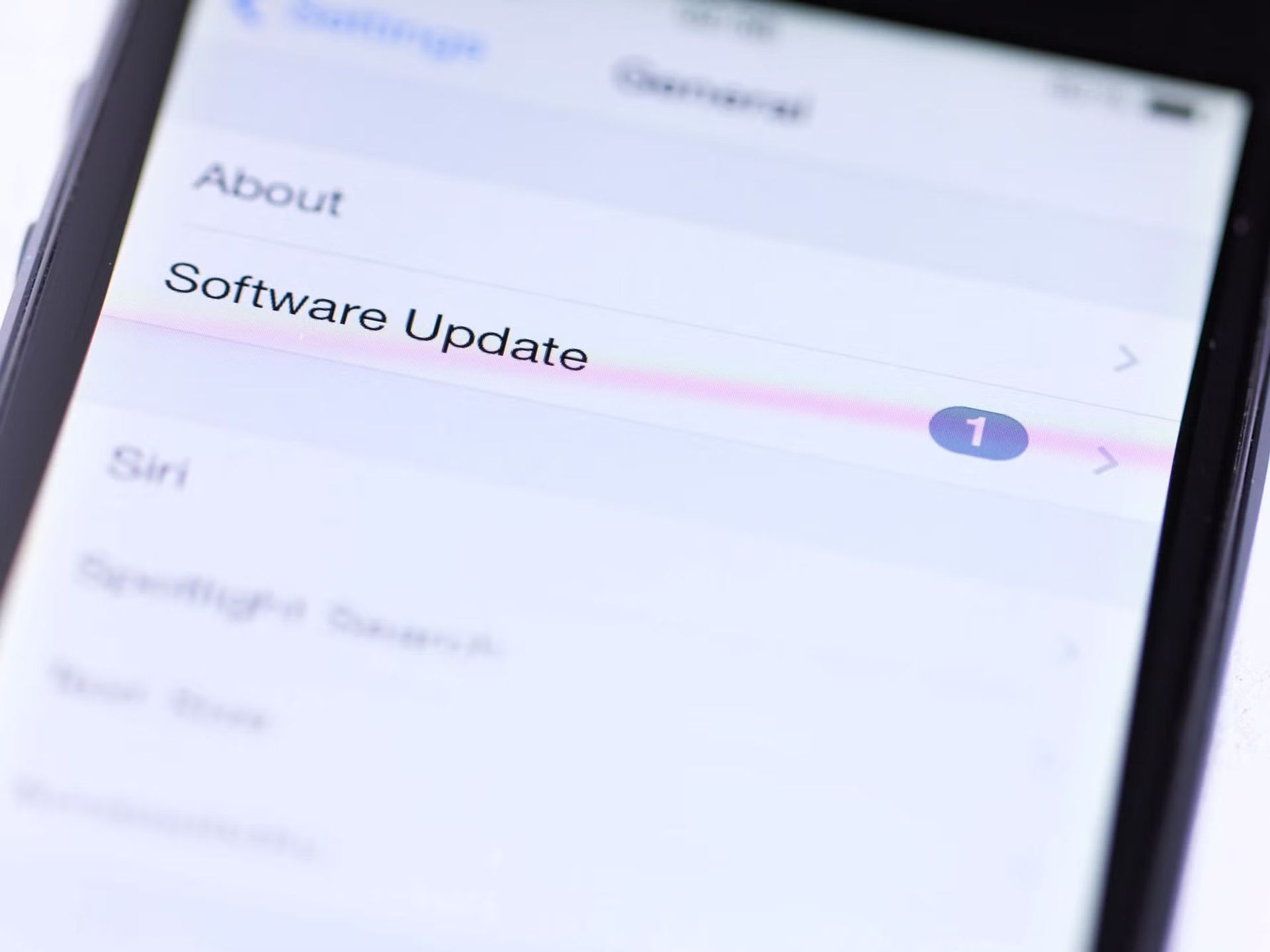
Updating your iOS to the latest version is crucial for various reasons. First and foremost, it helps keep your device safe from the latest cyber threats. Software updates often include security patches that address vulnerabilities and protect your device from potential attacks.
- Go to Settings > General > Software Update to check for the latest updates and install them if available.
Check your date and time
If you’re experiencing a persistent iMessage Signed Out error, another important aspect to check is your device’s system date and time. It’s crucial to ensure that they are accurate and up to date.
Incorrect date and time settings can sometimes lead to authentication issues and affect the functioning of iMessage. By verifying and correcting your system date and time, you can potentially resolve the error and ensure smooth communication through iMessage on your device.
- Go to “Settings” on your iPhone.
- Tap on “General.”
- Select “Date & Time.”
- Ensure that the option “Set Automatically” is enabled.
Reset iMessage region
While FaceTime may have certain regional limitations, iMessage, on the other hand, is supported globally. However, despite its widespread availability, a glitch in your device’s region settings can potentially hinder your ability to sign into iMessage.
If you encounter difficulties with iMessage sign-in, it’s worth checking your region settings to ensure they are appropriately configured. Here’s how:
- Go to Settings > Messages > Send & Receive > Apple ID link > Change Location > Region > Current Region > Save.
Contact Apple Support
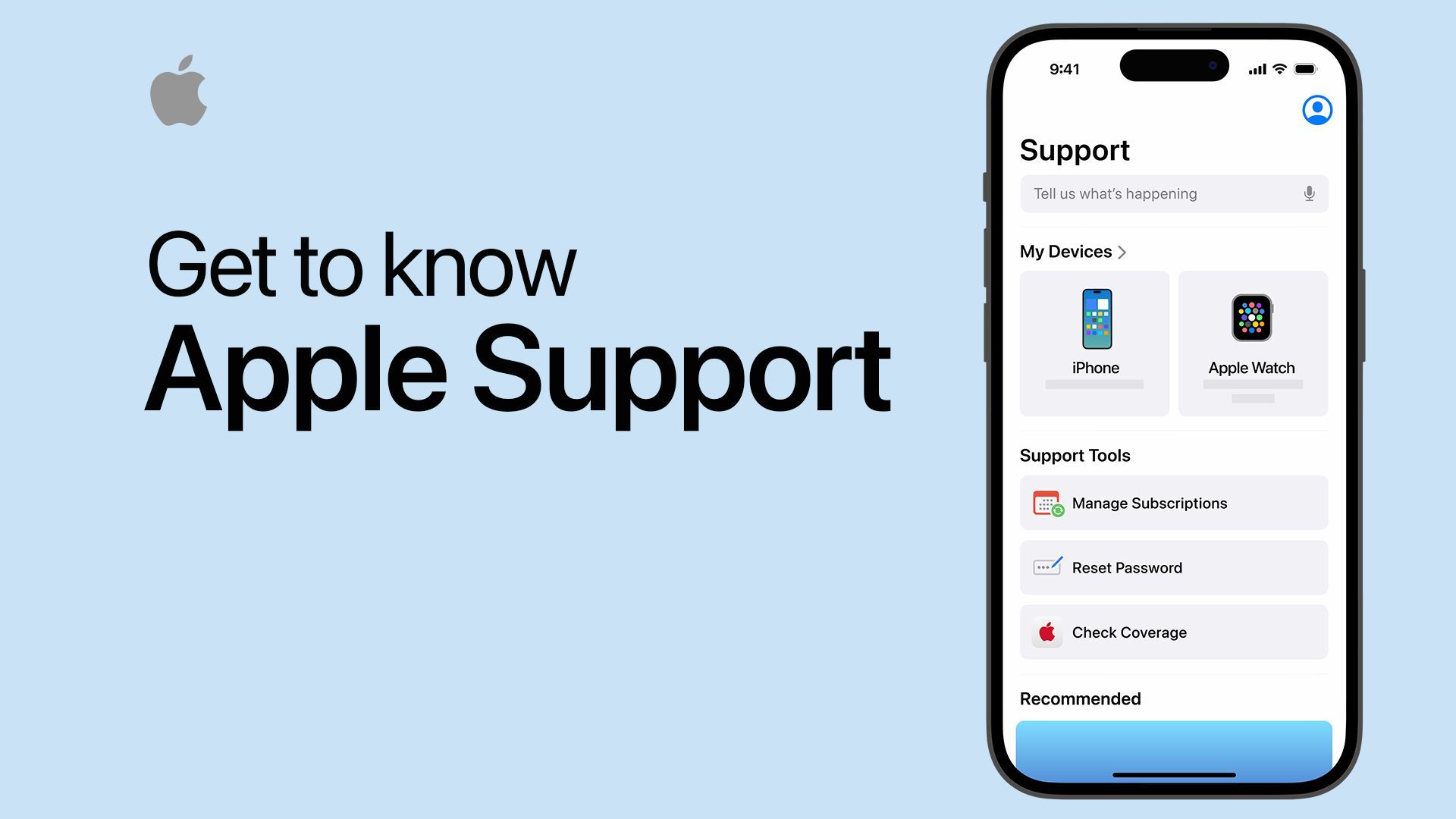
If the error persists despite trying all the above steps, don’t hesitate to seek further assistance from Apple Support. They can provide personalized guidance and help resolve any underlying issues with your Apple ID or device.
By following this comprehensive troubleshooting guide, you can identify and fix the root cause of the iMessage Signed Out error on your iPhone, restoring seamless communication through iMessage with your loved ones once again. Stay connected and enjoy the convenience of iMessage on your Apple device without any interruptions.
Meanwhile, if you wish to discover new features after getting rid of the issue, make sure to check out how to install iOS 17 public beta.
Featured Image: Credit


