
While some people want to know how to add threads link to Instagram bio, others want to know how to take it out. The new software, which launched on Thursday (July 6) in more than 100 countries and allows you to publish text updates up to 500 characters in length, is expected to compete with Twitter.
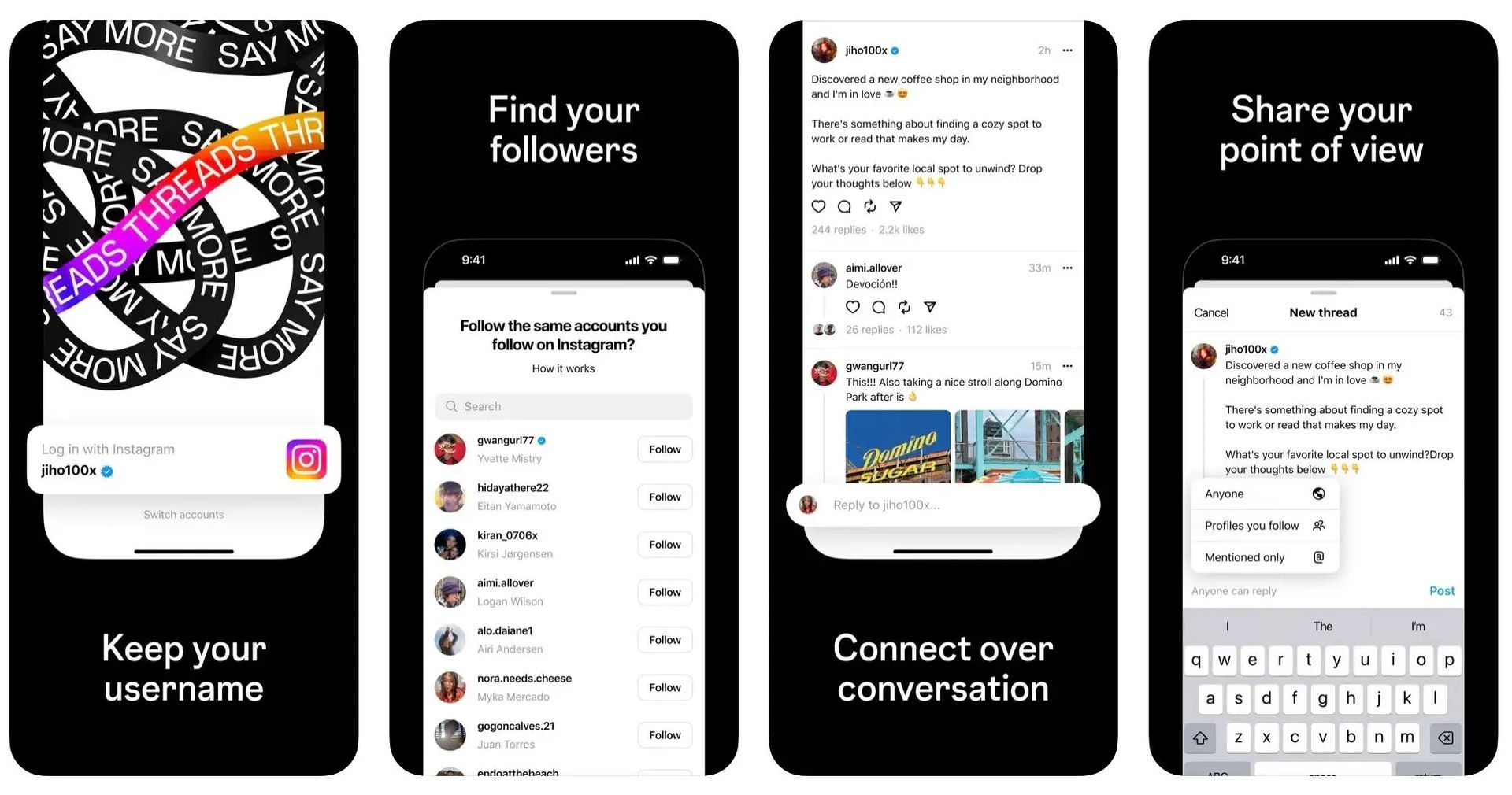
The Threads link may be added to Instagram to effectively reach a larger audience. Mark Zuckerberg has unveiled Threads, a newly created Instagram app that bears a striking similarity to Twitter. By providing text updates and chats, it aims to improve Instagram’s functioning. In more than a hundred nations, users may access and download this software for free on both iOS and Android smartphones.
Growing your reach on Instagram might be difficult if your followers don’t know about your profile. In order for people to easily join you on Threads, this post will show you how to publish your Threads link on your Instagram profile. So, let’s learn how to add threads link to Instagram bio!
How to add threads link to Instagram bio?
Connecting with friends and those who want to follow you on Instagram is made easier by adding your Threads link to your Instagram bio. Additionally, it offers a succinct and captivating overview of who you are or what your business stands for. Follow these steps to achieve that:
- First, download the Threads app to your iOS or Android smartphone and install it.
- Use your Instagram account to log in.
- Access your Threads profile.
- Share your profile by tapping it. It’s down underneath the display image.
- To copy the URL, choose Copy.
- Click Edit Profile on your Instagram profile now.
- Select Links.
- Select the following: Add an outside connection.
- Write Threads in the Title field and the copied link in the URL box.
- From the top-right, tap Done.
When everything is finished, you may go back to your Instagram page and see the Threads link in your bio. That’s the way how to add threads link to Instagram bio.
Delete Threads from Instagram bio: Steps
All you need to do to get rid of the temporary badge is click on it and select “Hide.” Now, the odd number combination won’t be visible on your profile.
Here’s what to do if you want to delete a bio link:
- Visit Instagram.
- Visit your profile.
- Press the ‘Links’ button.
- Select the “Threads” link.
- Click “Remove link.”
That’s all!
What does the Threads badge represent on your Instagram biography?
Some users received a Threads badge on their Instagram bio after joining into Threads via Instagram. By doing this, everyone who taps on your badge will be sent to your Threads profile.
The text that appears when you click the badge says, “This temporary badge lets your follower know that you’re on Threads and sends them to your profile if they have the app.”
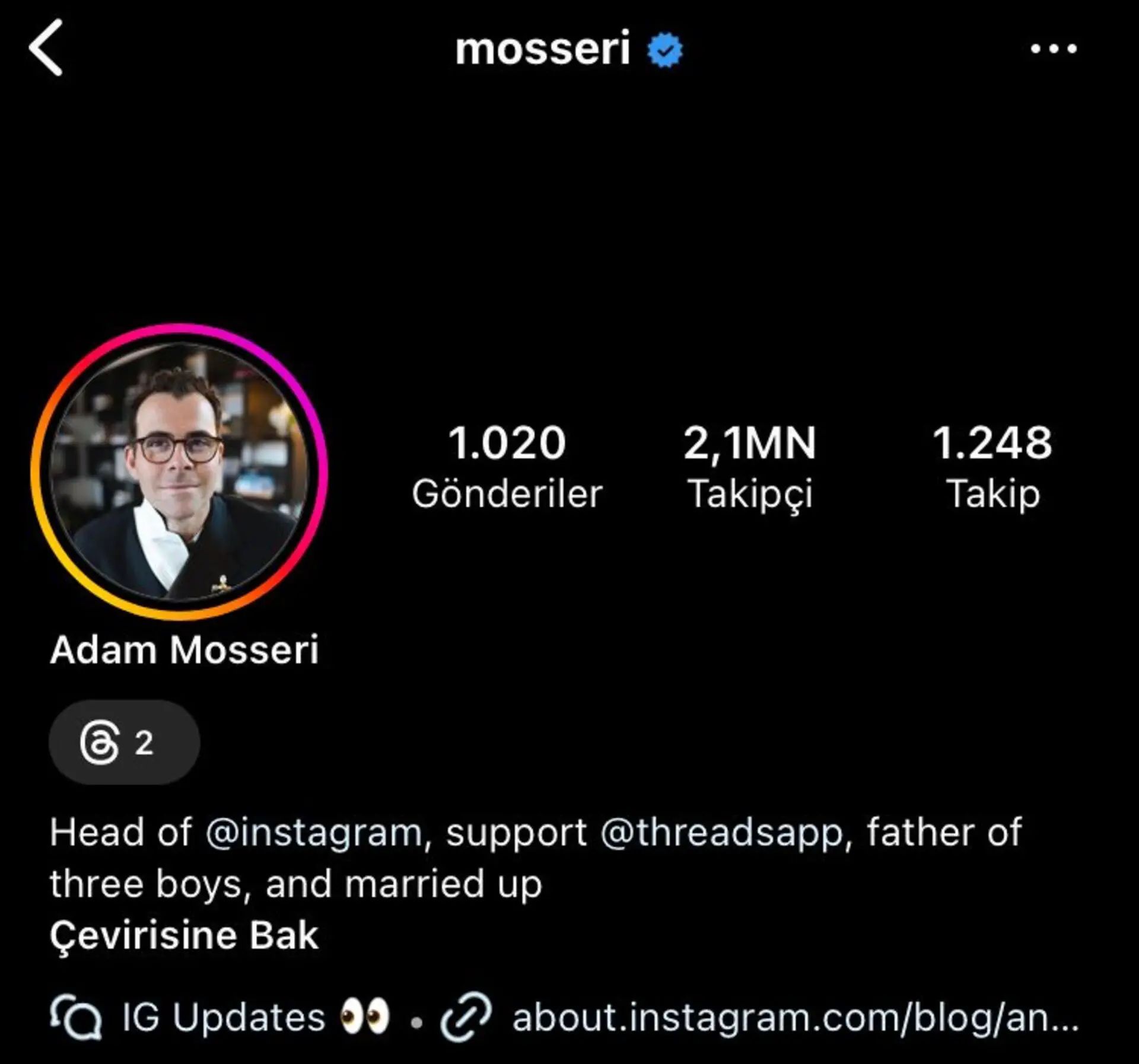
Since this may just be a temporary situation based on the information currently available, many people may not automatically receive the Badge. Additionally, there is no way to restore the badge back if you accidentally delete it from the bio. It would thus be more practical to include a link to your Threads profile in your Instagram bio until another choice becomes available.
There is yet a more practical way to promote your Threads account on Instagram. To reach a larger audience, you may post a thread and then publish it on your Instagram story.
Read more about Threads:
- How to unlink Threads to Instagram
- Threads vs Twitter: Which is the winner platform?
- How to deactivate Threads account without losing Instagram?
Featured image credit: GQ