


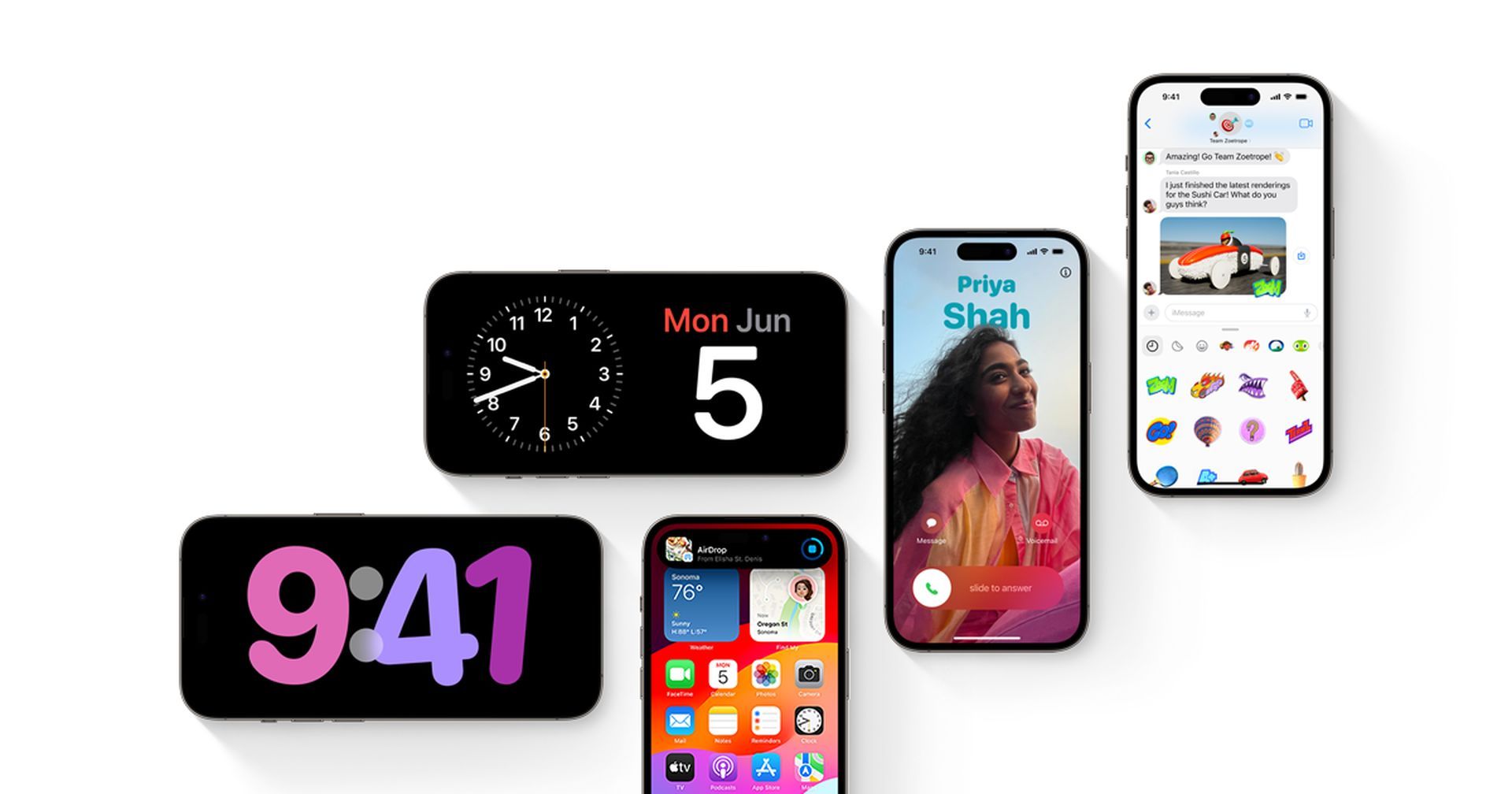
If you are seeking an answer to how to Rearrange iMessage Apps in iOS 17, sit back and relax. We are here to help. With the release of iOS 17, Apple has updated the Messages app. The default messaging app has been updated with a new user interface, which streamlines the navigation process and makes it easier to use.
The fact that it has somewhat more of a snap to it than it did in the past is the true cherry on top of its profile. The capability to reorganize iMessage apps has also been updated in response to the revised appearance of the program.
If you have upgraded to the most recent version of iOS and are unsure of how to rearrange iMessage apps in iOS 17 on your iPhone or iPad, this article will walk you through the process step by step. That said, let’s get started!
How to Rearrange iMessage apps in iOS 17?
The most recent version of the Apple Messages app features a user interface that, in comparison to its predecessor, appears to be somewhat easier to understand. In addition to providing easy access to the functions that are most commonly used, it also enables you to access your preferred applications in a straightforward manner, which is a significant benefit from the point of view of convenience. Follow these steps to learn how to Rearrange iMessage apps in iOS 17:
- To begin, launch the Messages app on your iOS device, be it an iPhone or an iPad.
- Proceed at this point to a conversation thread that interests you and open it.
- Next, you’ll want to click the “Plus” button that’s located to the left of the text box.
- The next step is to select “More” from the popup menu.
- Following that, you should see a list of all of the iMessage apps along with other great features such as Digital Touch, Memoji, and more.
- To arrange your iMessage apps in a particular order, you need to tap and hold onto an app, and then move it to the location of your choosing. That’s right, that’s how straightforward it is. Therefore, make use of this nifty drag-and-drop feature to exactly reorganize your iMessage apps in order to meet your needs.
- After you have finished customizing the iMessage app drawer, you may exit the menu by tapping on the blank area that is now visible.
And that brings us to a conclusion! You may maintain the Apple pie order of the iMessage app drawer by following the steps outlined above. You learned how to Rearrange iMessage Apps in iOS 17.
What has changed with iOS 17’s iMessage apps?
The way you use iMessage apps inside the Messages app has been completely redesigned for iOS 17. Your iMessage apps will now be accessible via a new list-style menu rather than as a row of icons at the bottom of the screen. You can rearrange the order in which these apps appear in the menu on Messages in addition to these cosmetic modifications.
On the first page of your iMessage apps list, iOS by default only displays the native Apple apps on your iPhone, but you can change this page’s appearance by adding other apps. You can put the apps you use the most on the first page and the ones you use the least on subsequent pages in this fashion.
How many apps can you add to the iMessage apps list’s front row?
With iOS 17, you can move as many third-party apps as you want from the second page to the front page by freely rearranging them inside the Messages app. We successfully moved several apps from the second page to the first page, and you can do the same if you want to move any undesired apps from the front page to the second page.
You now have all the information necessary to learn how to Rearrange iMessage Apps in iOS 17. Do you know how to lock the white balance on iOS 17?
Featured image credit: techrepublic


