

As Meta owns both Facebook and Instagram and interlinks the platforms, how to not share Instagram stories on Facebook is a question that many users wonder about since the feature sometimes can be frustrating. You can use your Facebook login information to sign in to Instagram as a result.
This easy process combines your two accounts, which has potential unintended consequences like Instagram sharing your Facebook account with Posts and Stories. Thankfully, you can prevent Instagram from sharing on Facebook without separating the two.
There are three different approaches, each with advantages and disadvantages.
- Delinking Facebook and Instagram will keep the two accounts apart and prevent cross-posting of updates. But you also can’t sign into Instagram with your Facebook ID.
- You can choose whether or not to stop sharing stories and/or posts from Instagram to Facebook by going to the App Settings (Global) page. This won’t unlink your Facebook account from Instagram. Therefore, you may still log in to Instagram using Facebook. Suitable for regular users who choose to maintain different accounts.
- Local Settings (Post-Specific) – this provides more granular control and prompts Instagram to ask you if you want to share every update on Facebook or not.
Now that we are aware of our options and what they accomplish, let’s examine these settings in more detail.
How to not share Instagram stories on Facebook?
As mentioned above, there are different ways to answer the question of how to not share Instagram stories on Facebook. Below, we’ll provide you with specific instructions about how to apply each of them. If you are trying to manage and share somehow better content with your followers, you might also want to know how to create Instagram collaborative collections and save posts with friends. Nevertheless, let’s talk details.
Delinking Facebook and Instagram
As mentioned, you can permanently cut off the connection between Facebook and Instagram so that the two accounts are completely independent. No caring or sharing. Both Android and iOS follow identical procedures, although we’ll use an iPhone as an example in this post. Just keep in mind that the UI can be a little bit different.
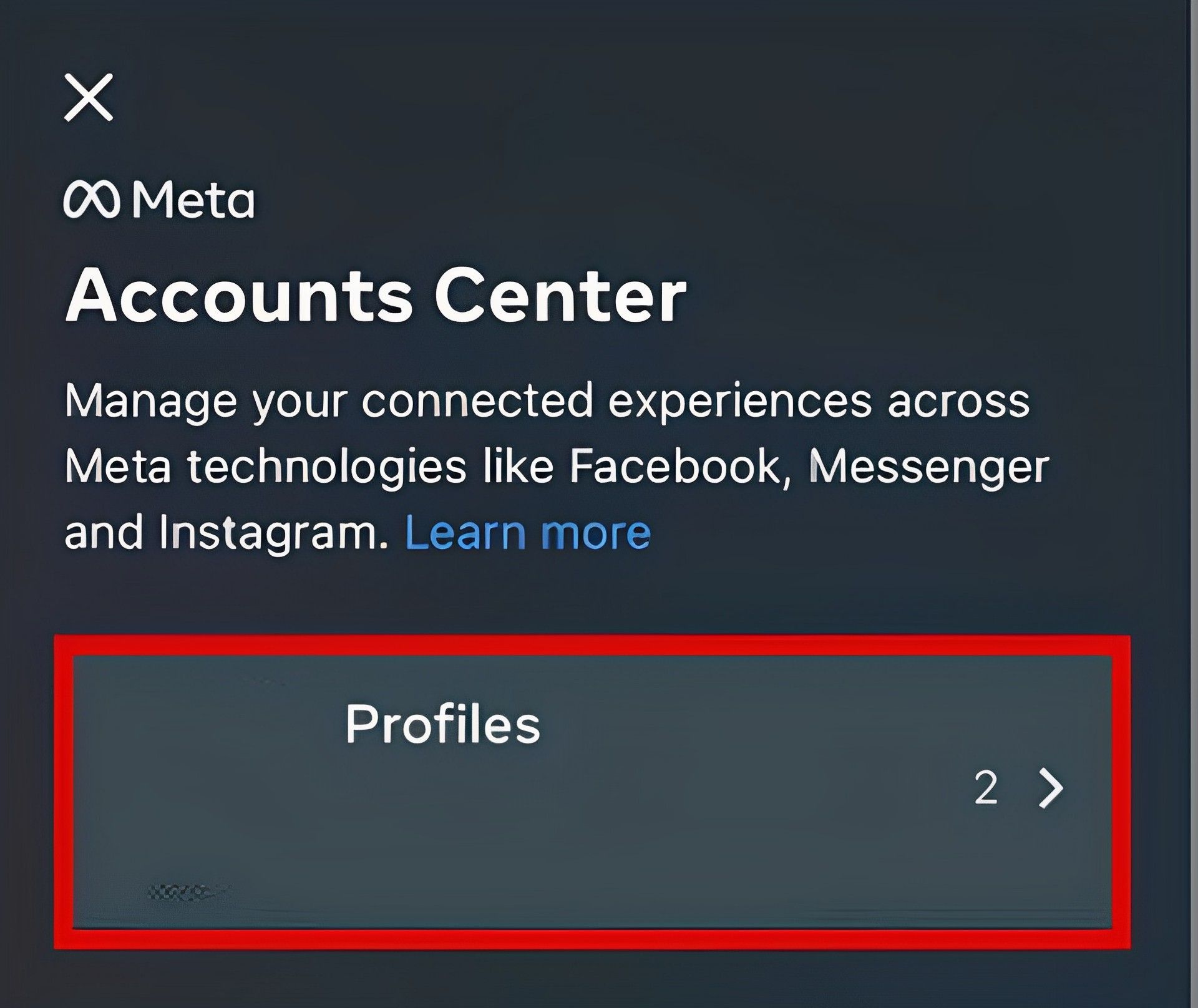
- Select Settings from the Kebab menu (the three-bar icon) by tapping on the profile icon in the bottom bar.
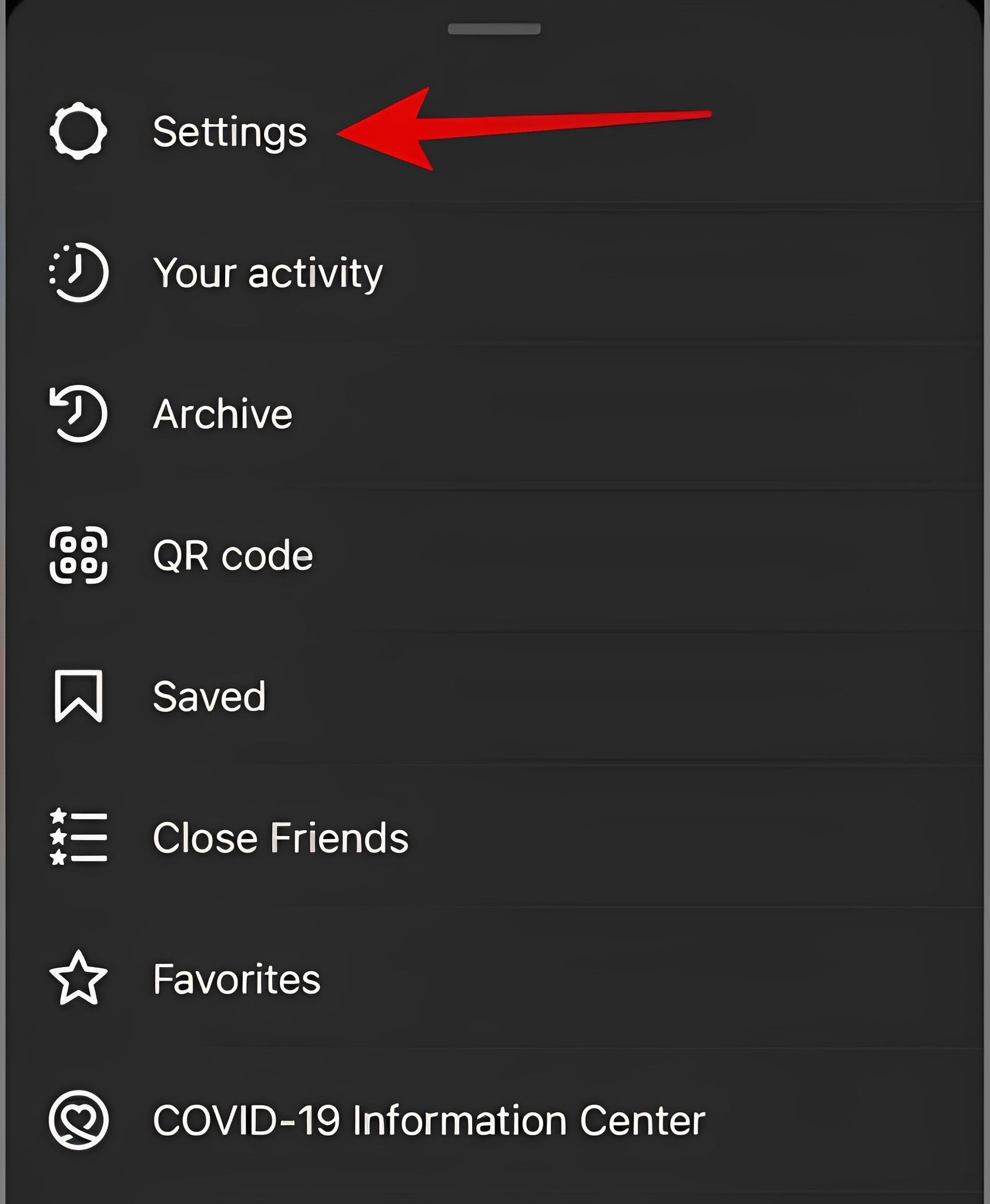
- Select Profiles at the top of the screen after tapping on Accounts Center at the bottom of the page.
- Choose the account you want to delink, in this case, Facebook, from the list. To do so, tap Remove From Accounts Center.
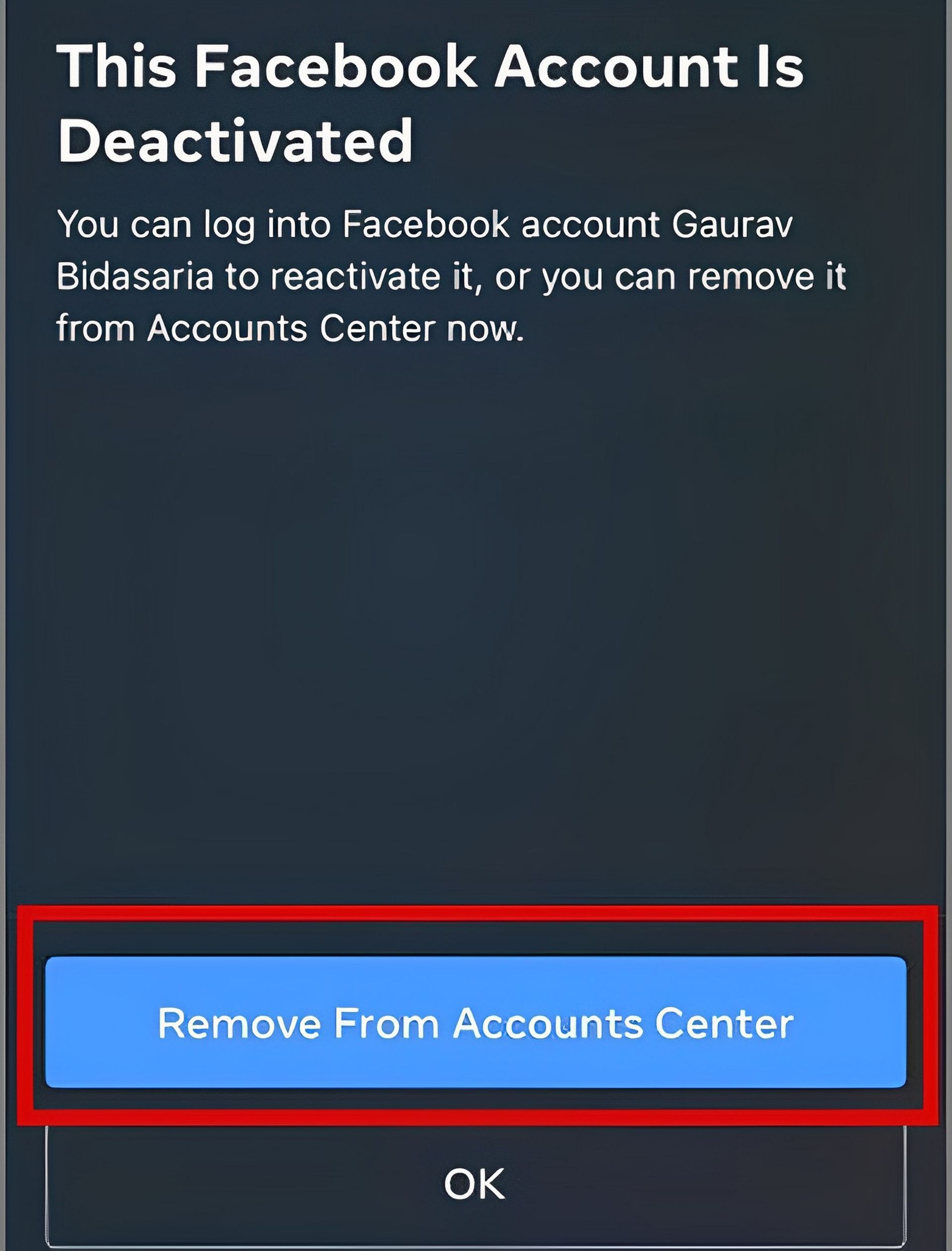
- On the following screen, where you will get a warning about what will happen if you proceed, tap Continue. To complete the process, hit Remove ‘account name’.
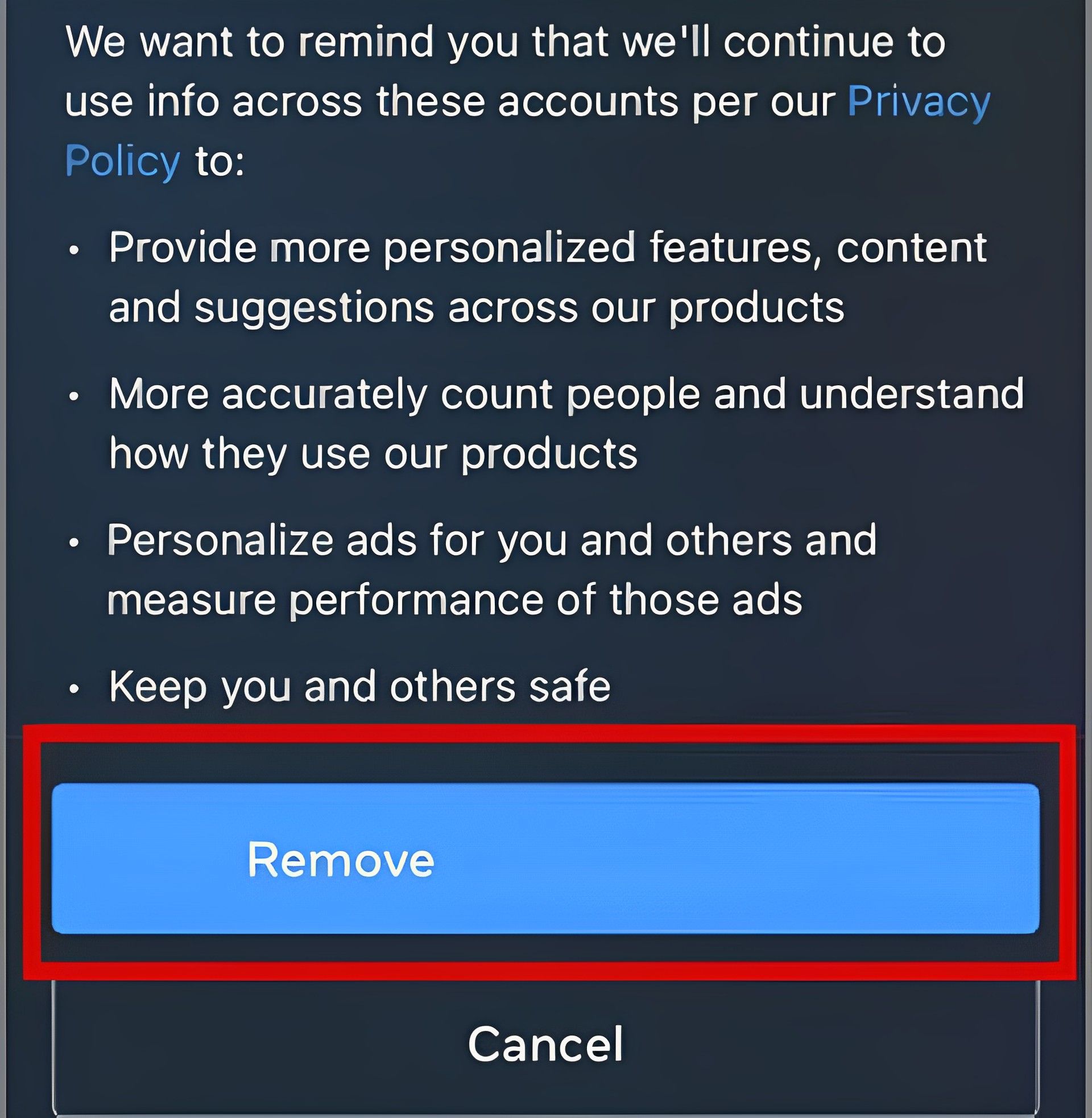
Your Facebook account and Instagram account should no longer be linked. No longer will your Instagram posts be automatically shared on Facebook. But you also can’t log in with your Facebook credentials. Therefore, you must log in using your email address or phone number in addition to your password. If you’ve forgotten your Instagram password, click the Forgot Password link and input your email address.
Closing Sharing across profiles
For those who skipped the introduction, this approach just toggles off the sharing Instagram Posts and Stories to Facebook setting rather than disconnecting your Facebook account from Instagram as the prior one did. The advantage is that you can still sign in to Instagram using your Facebook login information without worrying about Instagram immediately posting to Facebook.
- Repeat the previous steps to access Instagram Settings from the Kebab menu.
- Sharing across profiles can be chosen by tapping on Accounts Center at the bottom of the screen.
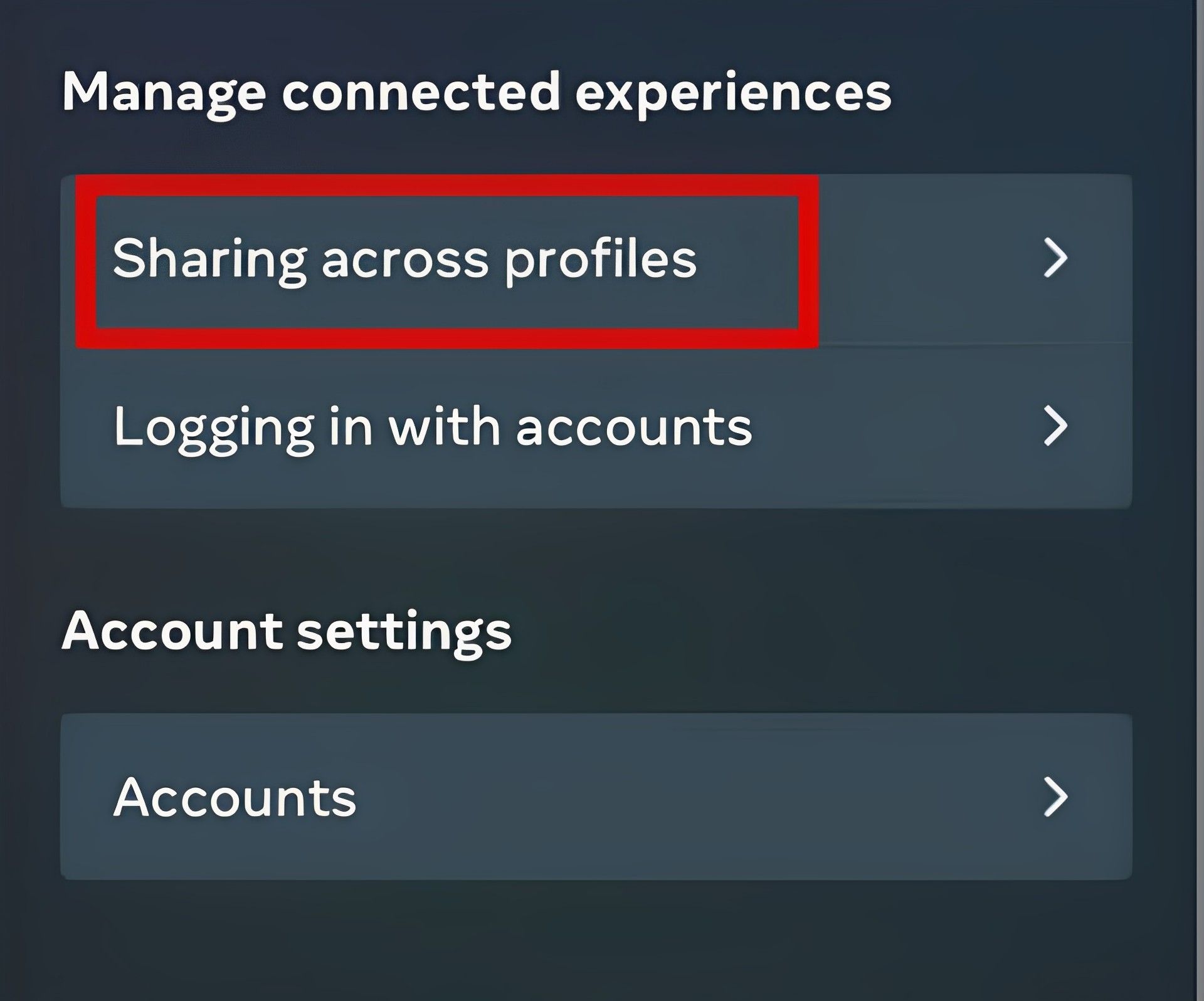
- Simply toggle off the options for Your Instagram story and Your Instagram posts after selecting the Instagram profile.
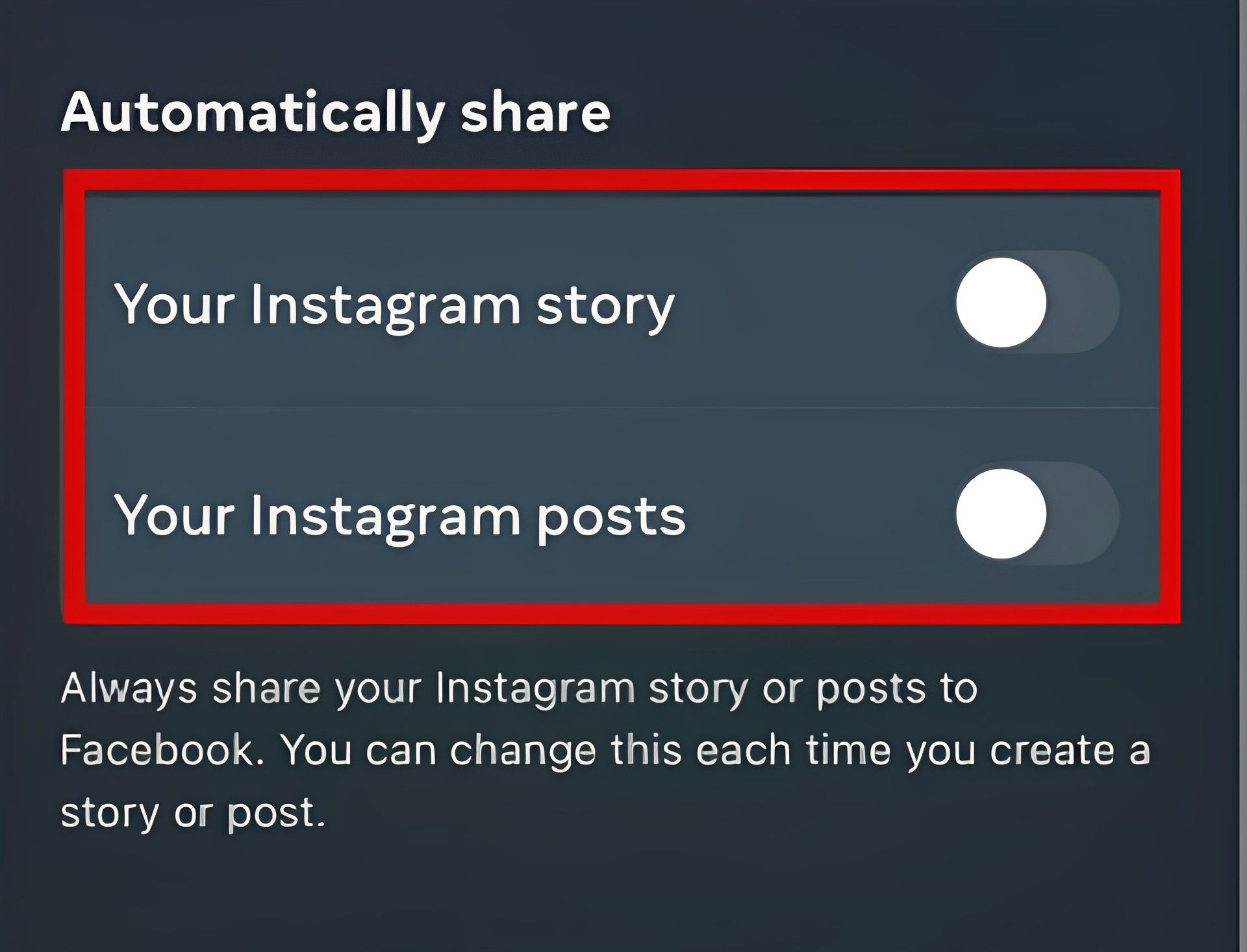
What Instagram posts on Facebook is now under your control. As these are global app settings, whatever you select here will apply to and function for all posts and stories.
Individually sharing posts and stories
There is a toggle that, when turned on, will share the same Story or Post on Facebook whenever you submit a Post or Story to Instagram. However, for it to function, Facebook must be connected to your Instagram account. Let’s examine that setting’s location and operation.
Sharing Instagram posts on Facebook
The Share screen will appear after applying filters and effects when you hit the + icon to start adding an image or video to an Instagram post. Here, you may turn off the sharing options for Facebook and other social media.
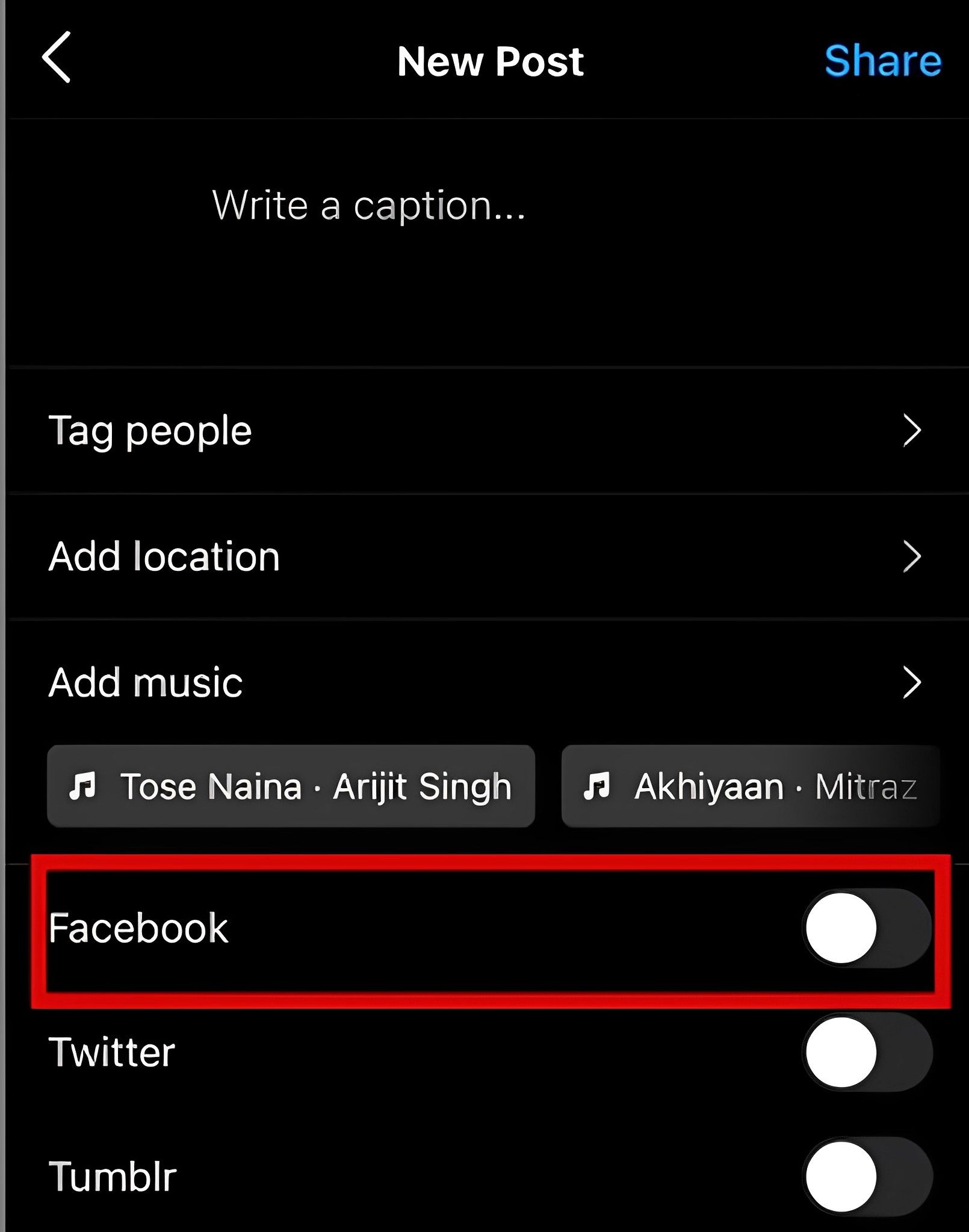
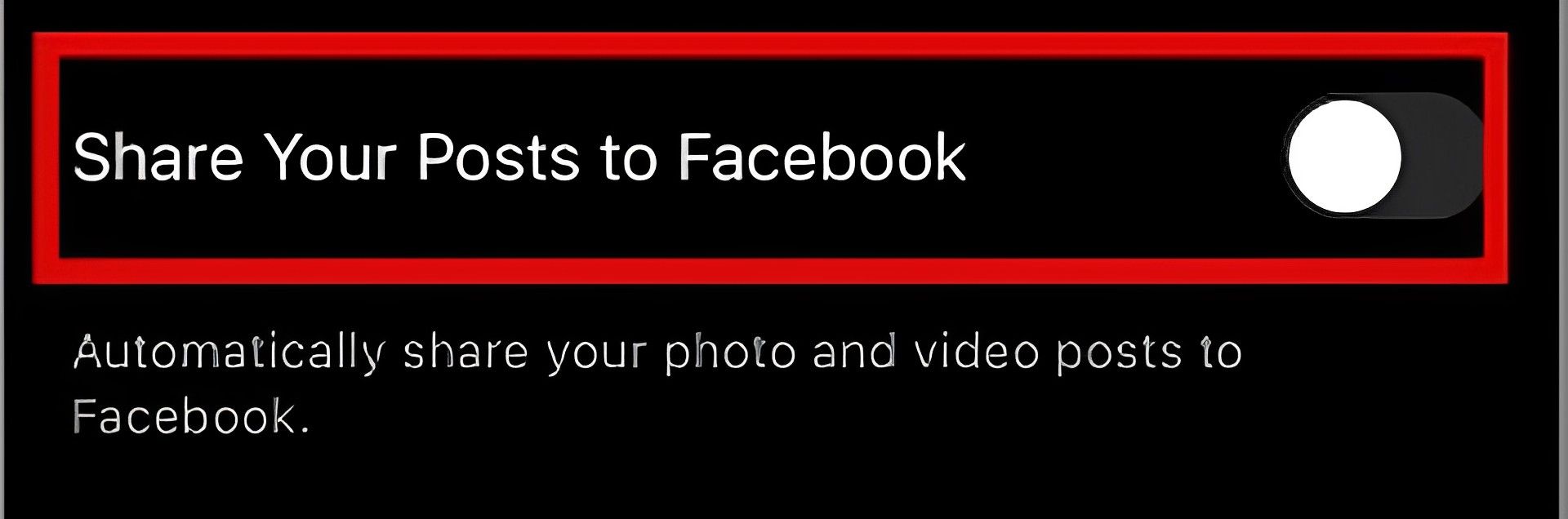
You can also toggle off the Share Your Posts to Facebook option by selecting Advanced Settings.
Sharing Instagram stories on Facebook
Similar to how you can share an Instagram Story on Facebook, you can do the same on Instagram. Select Send to, then select Share.
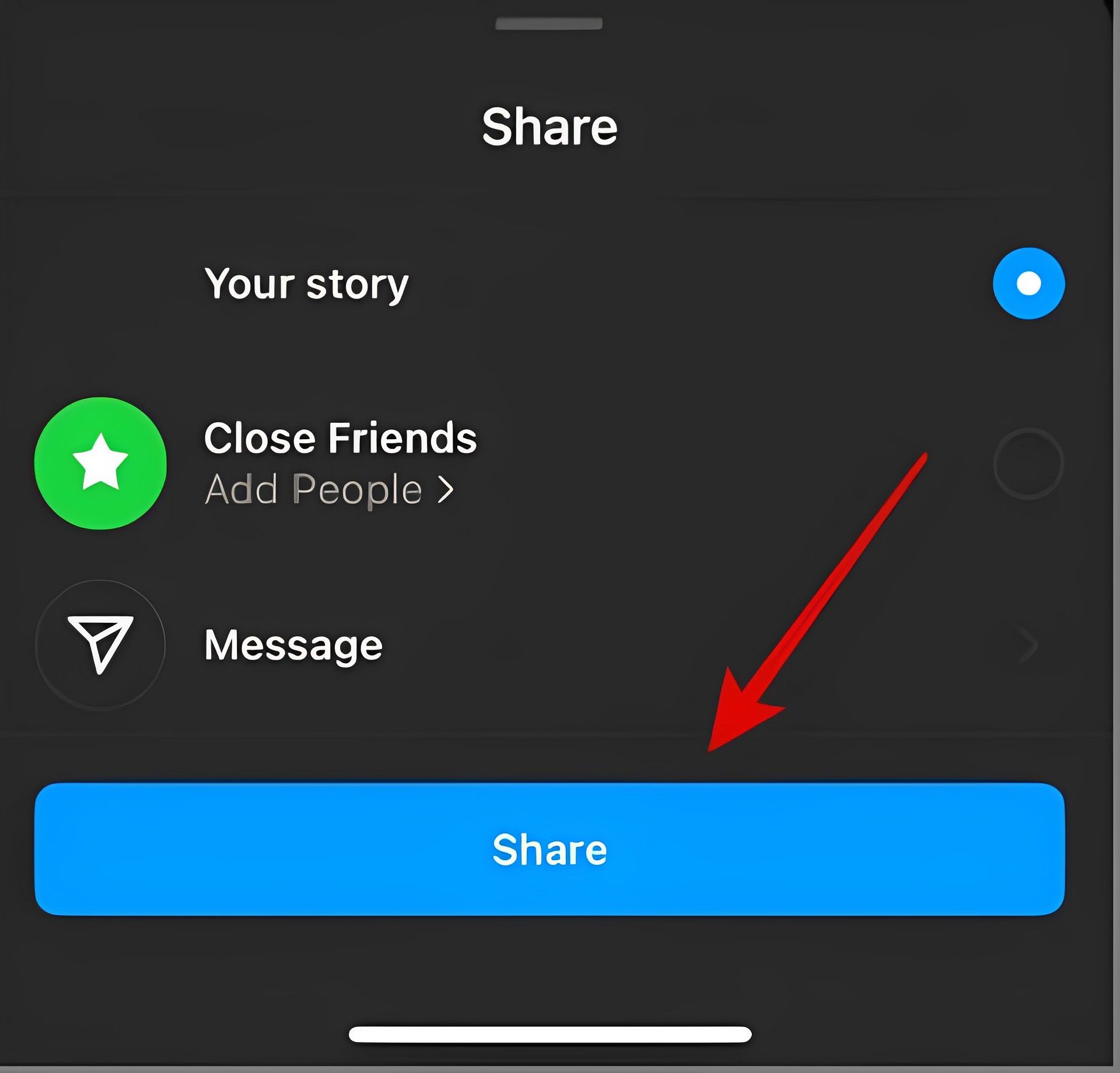
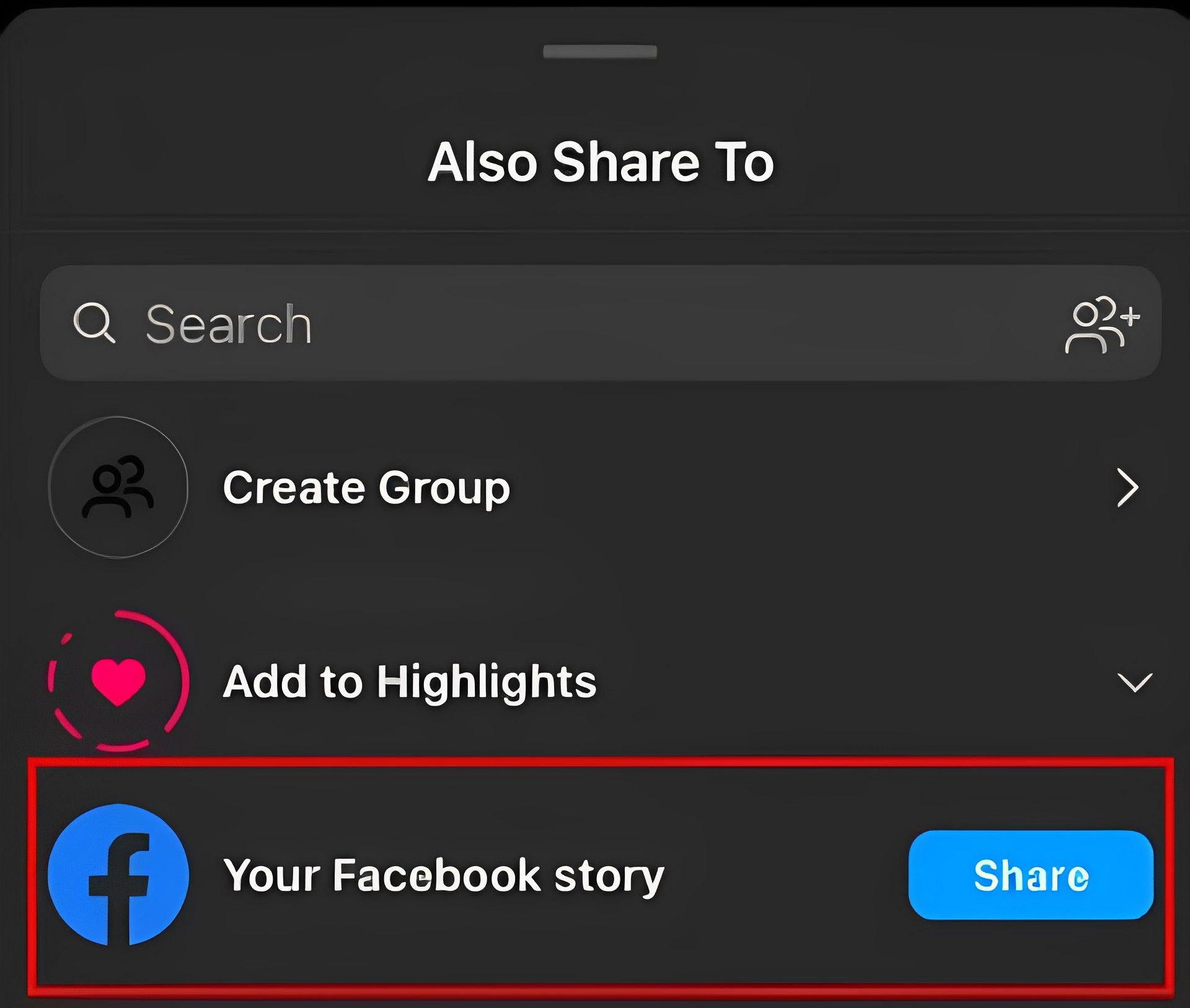
Now, you have the option of sharing your Instagram story on Facebook. If chosen, it will be posted simultaneously on Instagram Story and Facebook Story.
If and how your Instagram posts and/or stories are shared on Facebook is entirely up to you. You have the option to totally unlink the two accounts, disable platform-specific sharing without unlinking individual posts and stories, and manage to post to Facebook for specific posts and stories. If you need more help with the issue, you can visit Instagram’s help center to look for more peculiar aid.


