


Are you dealing with the “Pixel Watch stuck restarting” error. No worries, you are not alone. We are here to help. Read on!
Performing a force restart is a handy troubleshooting method that can resolve many issues on wearable and mobile devices, including the “Pixel Watch stuck restarting” error. This method is particularly useful when the watch is unresponsive, frozen, stuck on an app or watch face, stuck in a reboot loop, or failing to power on normally (commonly referred to as the “black screen of death”).
Thankfully, Google has provided a simple way to force restart your Pixel Watch, which we will explore in the following steps. With a positive mindset, let’s begin!
Pixel Watch stuck restarting: How to fix it?
Restarting can be an effective solution for resolving bugs and other malfunctions on your Pixel Watch since it shuts down all running processes, including the operating system files and any open apps. This process also clears the watch’s memory cache of temporary files and rebuilds those files during start-up.
When you force restart your watch, it terminates everything running in the background, allowing your device to start anew. Upon restarting, your Pixel Watch boots up normally, which should hopefully eliminate the errors you were experiencing before.
It’s worth noting that force restarting your watch does not reset it or remove any data or apps from the device. So, you can perform this method with peace of mind, knowing that your valuable information will remain intact.
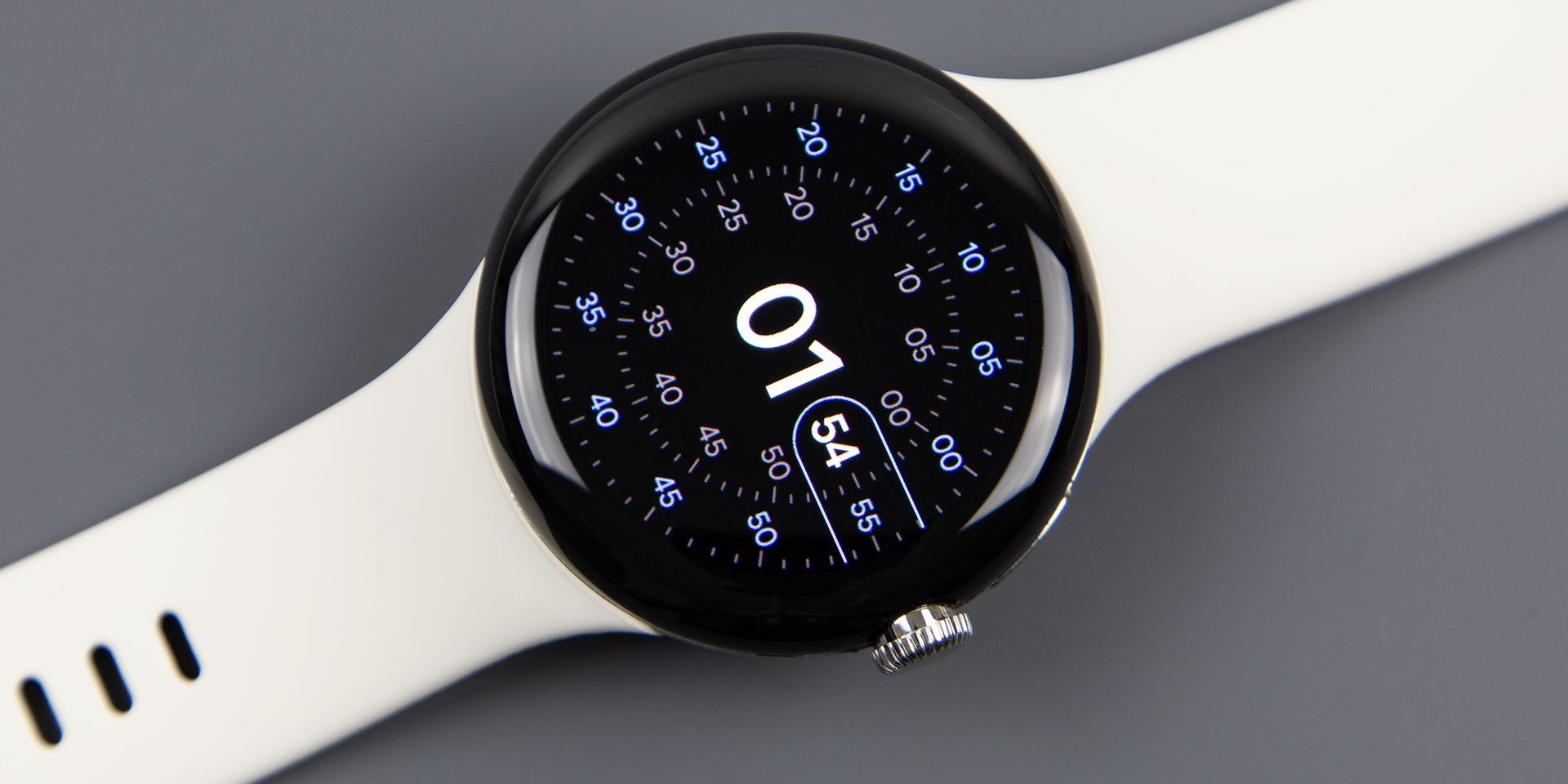
What’s the difference between a regular restart and a forced restart?
The primary distinction between a normal restart and a force restart is how the watch powers off. During a typical restart, the watch’s software follows a sequence of steps to turn off the power to the device. However, with a force restart, the power is suddenly cut off.
To illustrate this point, consider a forced restart as a power outage and a regular restart as deliberately turning off the power.
Therefore, if possible, we recommend performing a regular restart rather than a force restart. Restarting the watch allows it to shut down in a more controlled manner, which can help avoid potential issues that may arise from a forced shutdown. By following this approach, you can optimize your Pixel Watch’s performance and reduce the risk of encountering the “Pixel Watch stuck restarting” error in the future.
There are two ways to restart your Pixel Watch: through the on-screen menu or via the Settings app. To use the on-screen menu, press and hold the Digital Crown and select “Restart” or “Power off.” Alternatively, navigate to “Settings” > “System” > “Restart” or “Power off.”
However, there may be instances where you are unable to restart your watch using these methods. For instance, if your Pixel Watch’s screen or buttons are unresponsive, or if the device appears to be stuck on a black screen, app, or the Google logo and won’t turn on, a forced restart is often the best course of action.
Using Pixel Watch’s buttons
Before you begin, remove the watch from your wrist to make it easier to access.
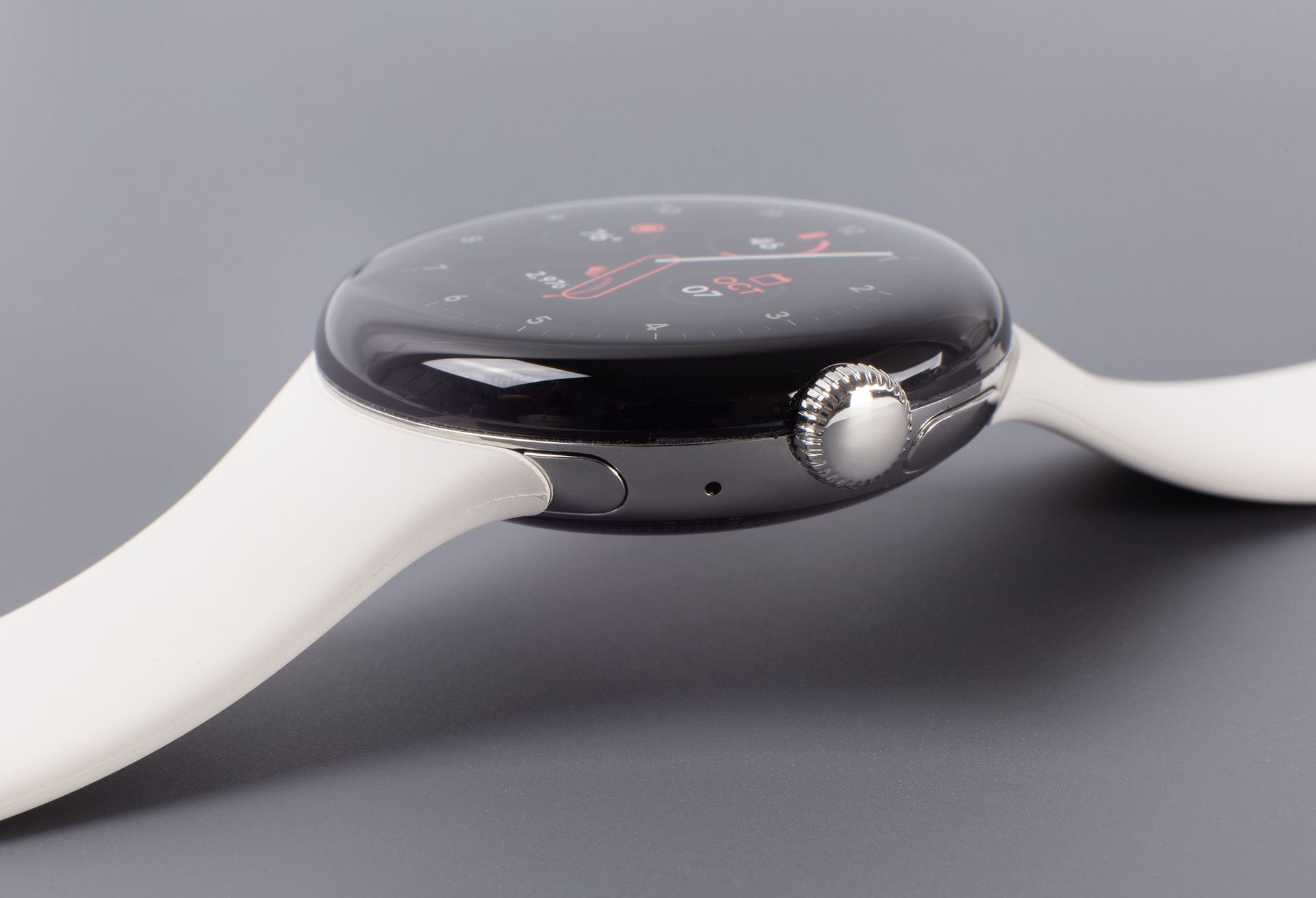
- Press and hold both the digital crown button and the smaller side button (used to access recent apps) for approximately 30 to 60 seconds.
- Keep holding BOTH buttons until you see the white Google G icon on the watch’s screen, then release both buttons.
- Ignore the menu that pops up and continue holding both buttons until you see the white G icon.
- Wait for your watch to reboot entirely. You should see the white G icon turn into a rainbow G icon, followed by a “Starting” screen before your device finally reboots.
- If the first attempt is unsuccessful, try holding both buttons for a more extended period and ensure that you do not release the buttons too early to initiate the reboot.
Using Fastboot mode
- If your Pixel Watch is on, turn it off.
- Wait for 30 seconds, then press the crown to turn the watch back on.
- Once you see the white G logo, simultaneously tap the upper-left and lower-right corners of the watch’s screen.
- If successful, your watch should enter Fastboot mode. If not, repeat the previous steps.
- In Fastboot mode, press the side button next to the crown to scroll down.
- Highlight “Recovery Mode” and press the crown.
- You should see the message “No Command” on the watch, which is normal.
- Press and hold the Digital Crown and swipe up from the bottom of the watch’s screen with another finger.
- Wait for the Recovery menu to appear, then swipe down to select and highlight “Reboot system now.”
- Once highlighted, swipe right on “Reboot system now.”
- Wait for your watch to reboot.
Conclusion
In conclusion, the “Pixel Watch stuck restarting” error can be a frustrating and disruptive issue to encounter. However, there are several effective solutions to this problem, such as performing a regular or forced restart. By following the steps outlined in this guide, you can troubleshoot this issue and restore your Pixel Watch to full functionality.
It’s essential to keep in mind that a force restart should only be used as a last resort when other methods fail, and it’s not recommended to perform this action regularly. Additionally, if you continue to experience the “Pixel Watch stuck restarting” error despite attempting the troubleshooting methods mentioned above, it may be necessary to contact Google support or take your device to a professional for further assistance.


