


Is your EA App collection empty and you are sure that you have purchased the game? Well, you are facing a simple problem that many people have. Let us explain how to fix EA App collection empty error.
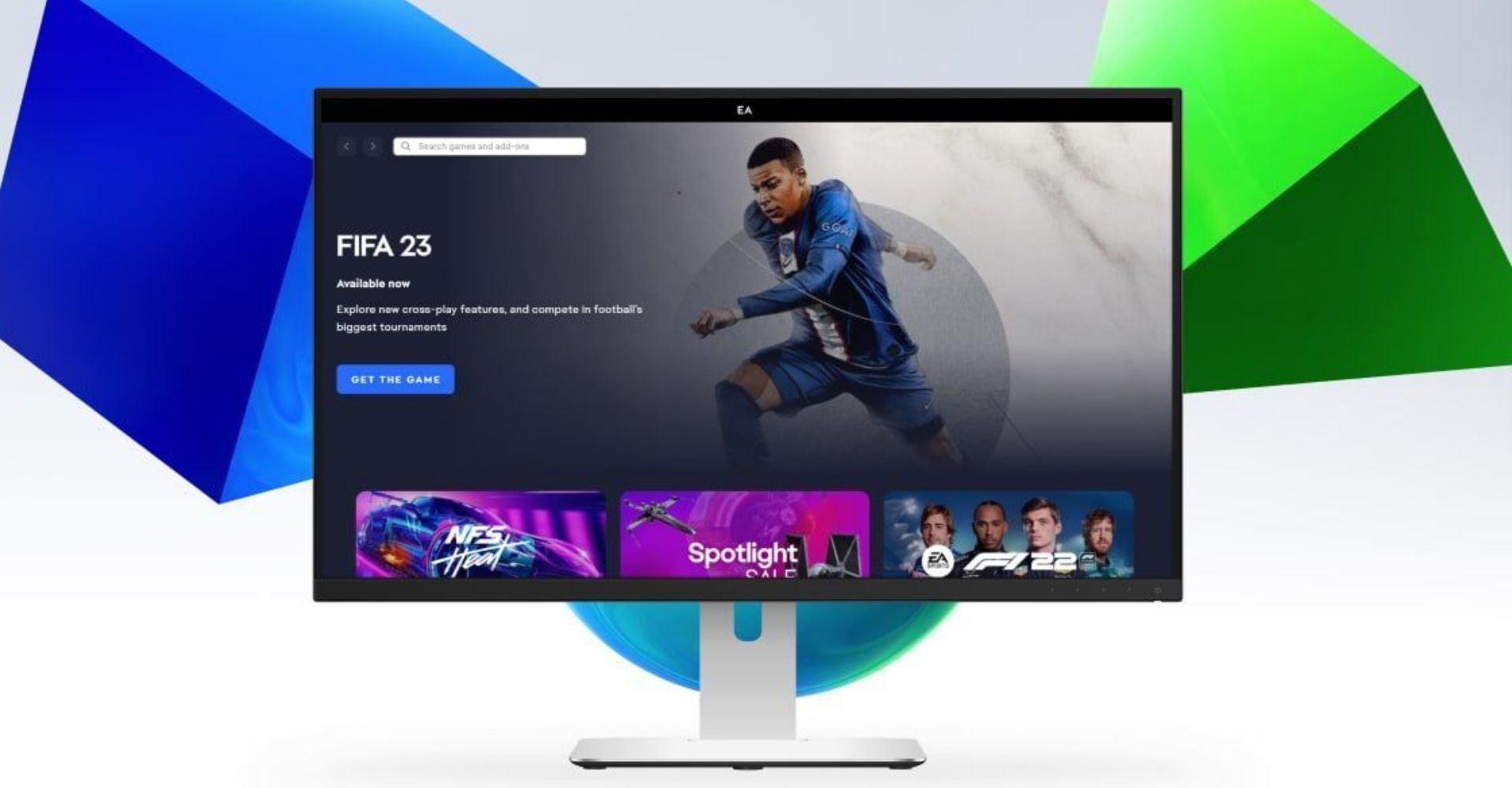
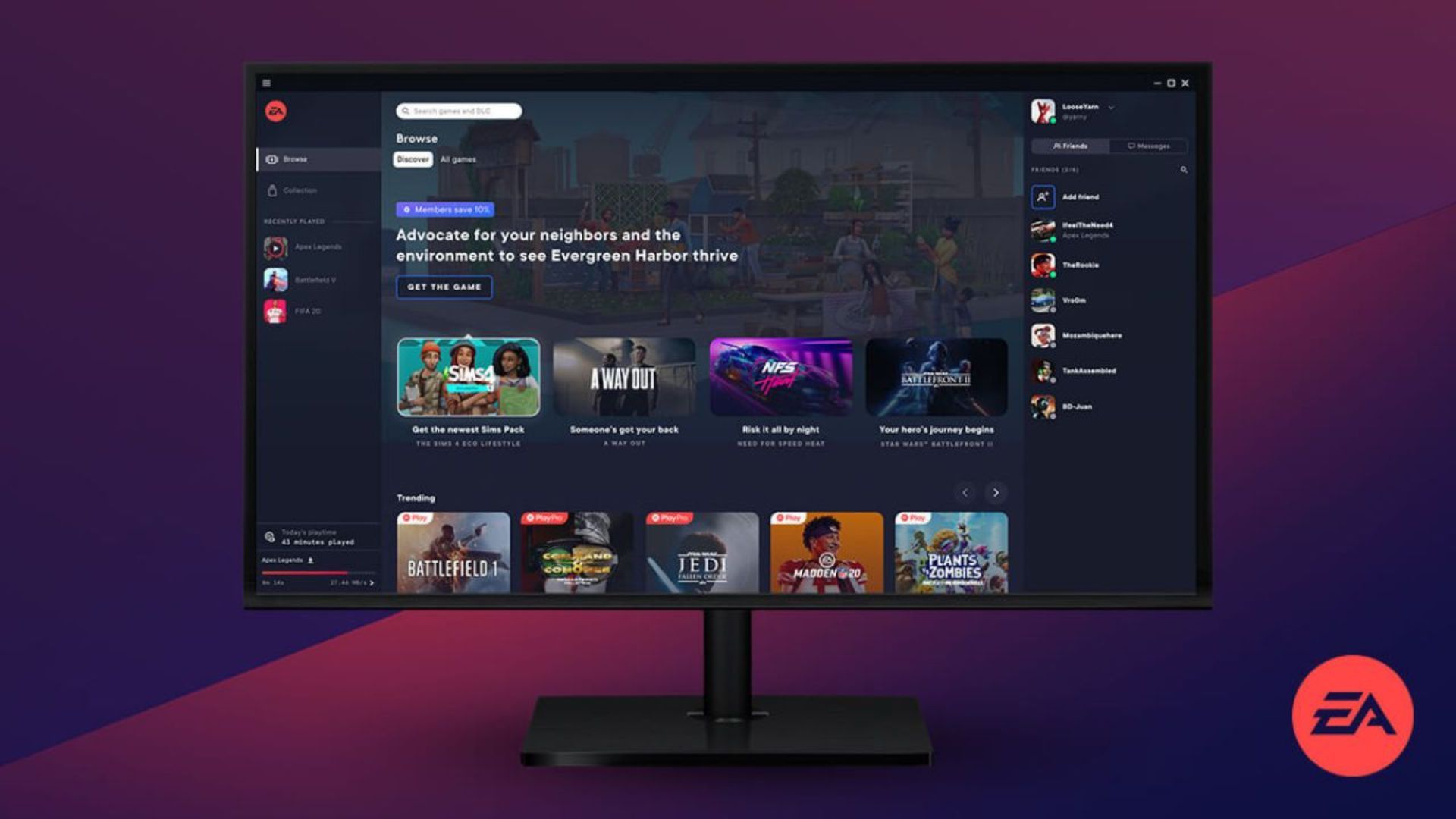
Our main PC platform will soon be the EA app, which will take the place of Origin now that it has officially exited open beta. Our quickest and lightest PC client to date is the EA app. You can locate the games and material you’re looking for quickly and easily with the new, simplified design. With the EA App, you may make sure that your games are available to play when by using automated game downloads and background updates.
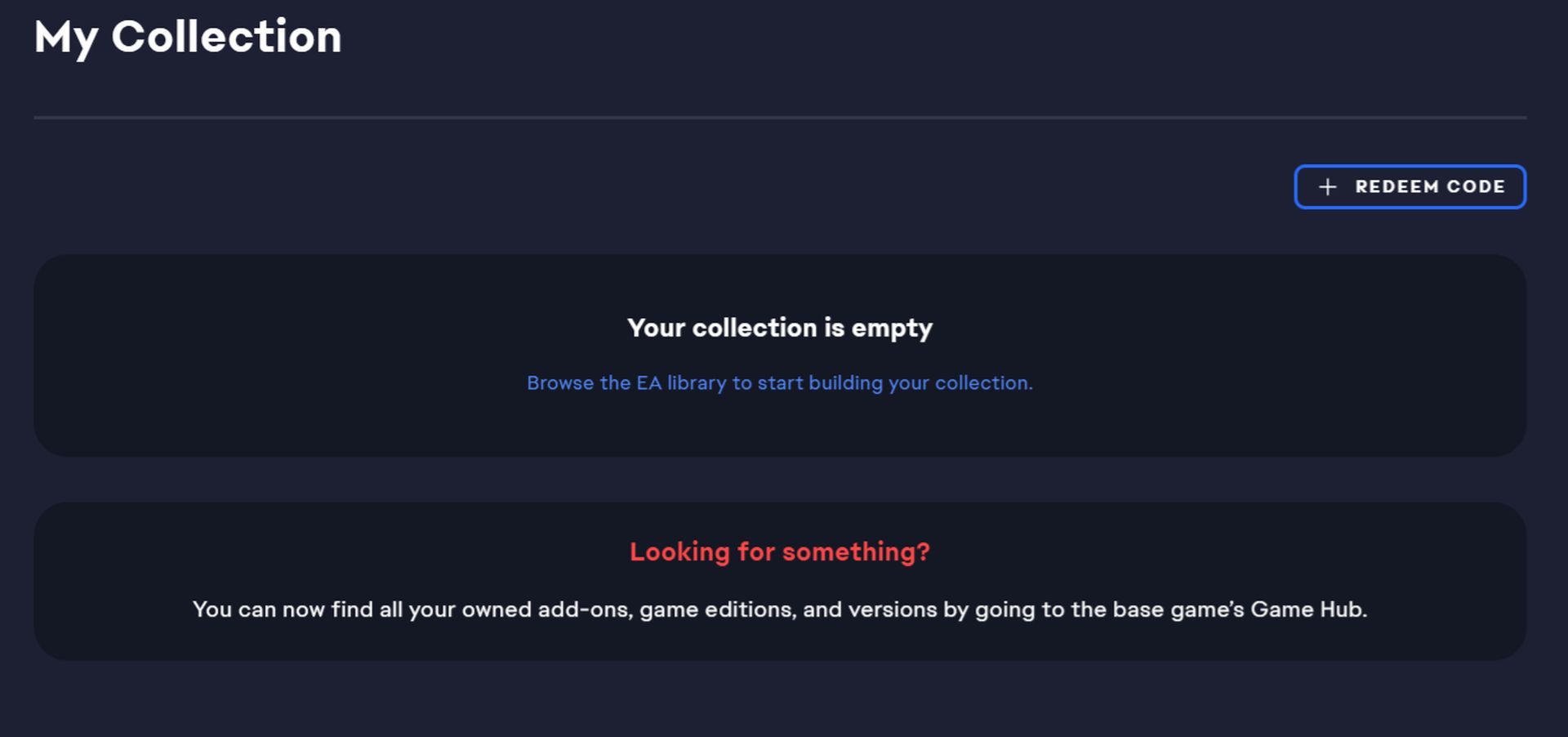
But big changes always come with small mistakes. EA App collection empty error is a simple bug that prevents EA app users from accessing their games in their library and its solution is in the rest of our article!
How to fix the EA App collection empty error?
We have some suggestions for you to solve the EA App collection empty error. If you cannot access your library, you need to try our solutions below, in order. We are almost certain that one of the suggestions we mentioned can fix the EA App collection empty bug.
- Restart the EA App
- Clear the cache of the EA App
- Re-install the EA App
- Check if your Firewall is blocking the EA App
Before attempting any fixes for the EA App collection empty bug, you should make sure that the EA App and Origin are not installed on your computer at the same time.
Restart the EA App
Although it seems like a very simple solution, the solution to the EA App collection empty error is mostly to restart the application. Doing so will cause the EA App to recheck the files and services required to run at startup and fix any possible errors.
Clear the cache of the EA App
You might occasionally need to empty the EA App Cache to fix the EA App collection empty error.
The procedures listed below can be used to clear the Origin and EA App Cache:
- Close the EA App and log out completely
- Open the Run command box by holding the Windows and R keys together
- Click OK after typing “%AppData%” (without quotes)
- Remove all folders and files from the Origin folder aside from LocalContent (do not delete this one)
- This will direct you to a Roaming folder in the AppData directory. Delete the folders called Origin and EA App
- The term “AppData” will appear at the top of your window
- From here, click the Local folder
- Delete the folders for Origin and EA App
Restart your computer, then log back into the EA App to see if your EA App collection empty error has been fixed or not.
Re-install the EA App
If the solutions we mentioned above for solving the EA App collection empty error did not work for you, it’s time to do a clean install of the application. You can reinstall the EA App by following the steps below and resolve the EA App collection empty error.
- Press Windows Key and click on the Settings icon
- Type Add or remove programs into the prompt box that is in the middle of your screen and click on it
- Find the EA App from the list and double-click on it
- Follow the uninstallation progress’ directions
And in this way, you have removed the EA app from your computer. Download the new EA App client from the official EA site and reinstall it on your computer and launch the application to see if the EA App collection empty error is resolved.
Check if your Firewall is blocking the EA App
Your EA App may be blocked by your Windows Defender firewall. If this is the case, the login process will be prevented because the login request won’t be able to reach EA servers causing you to face the EA App collection empty error.
The simplest way to verify is to launch Windows Defender Firewall. Choose the option to permit a program or feature through Windows Defender Firewall. Verify whether the EA App is included in the list of permitted applications.
If the application is still not authorized, you must add it from the installation directory and make communication channels for both private and public use accessible.
After enabling the application via Windows Firewall, verify if your EA App collection empty problem has been solved or not.
Our guide ends here. We hope you were able to solve the EA App collection empty error by following it. If you are using the EA App to play the popular football game FIFA, we recommend you take a look at our article titled TOTY FIFA 23 vote: Every TOTY nominee and how to vote for it.


