
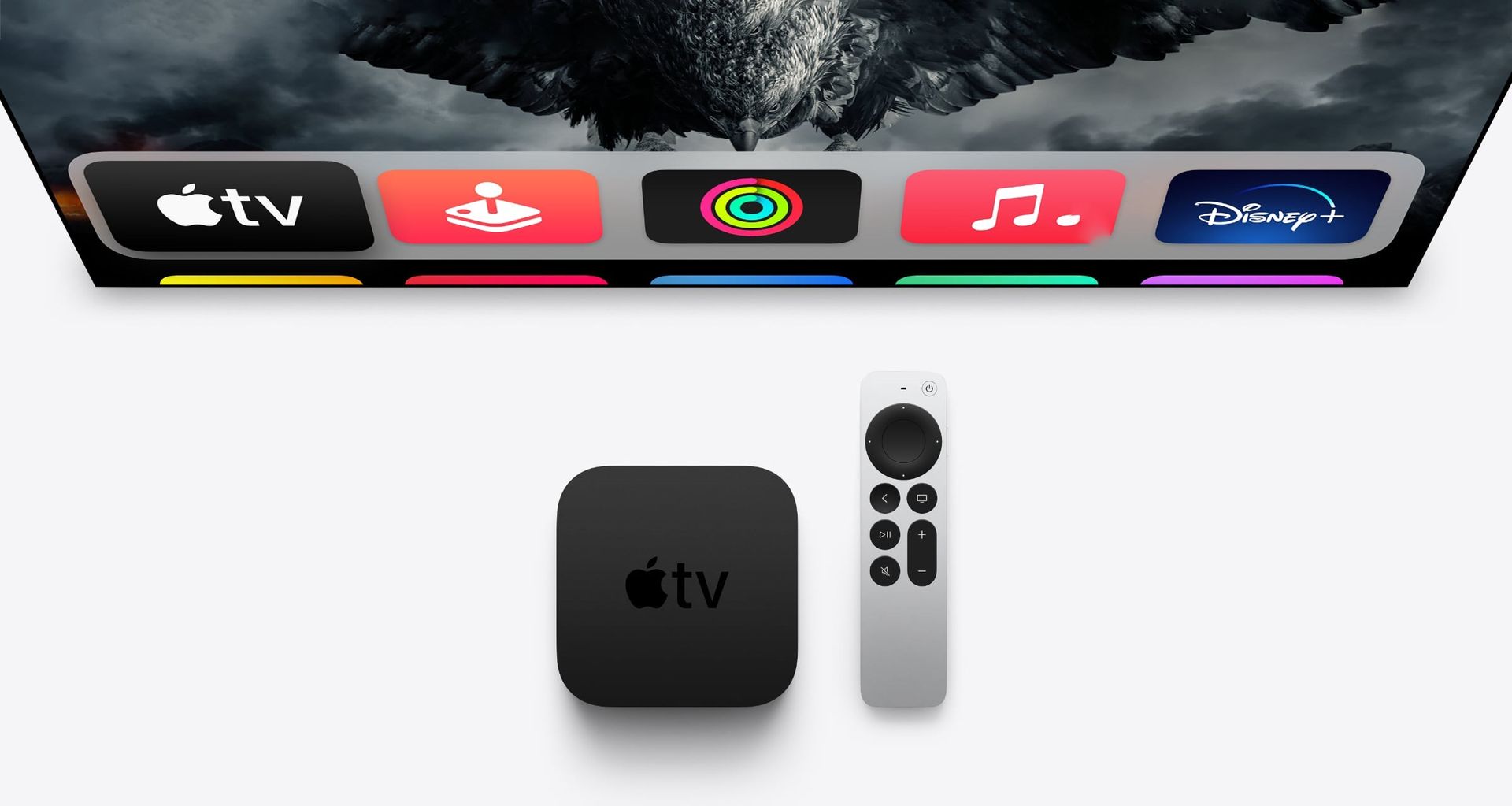

Today we are here to show you how to restart an app on Apple TV. An app or game may occasionally crash or experience another issue that causes a frozen screen or other unresponsive behavior. It might be essential to use the tvOS app switcher to force the program to close in order to fix the problem.
How to restart an app on Apple TV?
By following these steps you’ll find out how to restart an app on Apple TV:
- Press the Home button
- Open app switcher
- Use the Touch surface to scroll through the list of open apps
- Press the Home button to go back to the main menu on your Apple TV

Press the Home button
To navigate to the home screen on your Apple TV, you’ll need to use the Home button on the Siri Remote. This button is located at the top of the remote and is marked with a house icon.
To go to the home screen, simply tap the Home button once. This will take you back to the main menu of your Apple TV, where you’ll see a list of all the apps and channels that are available to you.
If you’re currently using an app or watching a video, tapping the Home button will take you back to the home screen without quitting the app or interrupting the video. You can always return to the app or video by selecting it from the home screen or by using the app switcher.

Open app switcher
The app switcher on your Apple TV is a feature that allows you to quickly switch between apps or channels that you have open. To access the app switcher, you’ll need to double press the Home button on the Siri Remote.
Here’s how to do it:
- Make sure you’re on the home screen of your Apple TV. If you’re currently using an app or watching a video, tap the Home button once to return to the home screen.
- Double press the Home button on the Siri Remote. This will open the app switcher, which displays a list of all the apps and channels that you have open on your Apple TV.
- Swipe on the Touch surface of the Siri Remote to scroll through the list of open apps and channels.
- Tap the app or channel that you want to switch to. This will take you to that app or channel, allowing you to continue using it.
Keep in mind that the app switcher is different from the multitasking screen, which shows you all the apps and channels that you have used recently. To access the multitasking screen, you’ll need to triple press the Home button on the Siri Remote.

Use the Touch surface to scroll through the list of open apps
To select an app using the Touch surface of the Siri Remote, you’ll need to swipe your finger in the direction that you want to go.
Here’s how to do it:
- Double press the Home button on the Siri Remote to open the app switcher.
- Swipe on the Touch surface to scroll through the list of open apps and channels. You can swipe to the left or right, or up or down, depending on how you want to navigate through the list.
- When you find the app that you want to select, lift your finger off the Touch surface. The app will be highlighted, indicating that it is selected.
Keep in mind that the app switcher is different from the multitasking screen, which shows you all the apps and channels that you have used recently. To access the multitasking screen, you’ll need to triple press the Home button on the Siri Remote.

Press the Home button to go back to the main menu on your Apple TV
To return to the home screen on your Apple TV, you’ll need to tap the Home button on the Siri Remote. This button is located at the top of the remote and is marked with a house icon.
Here’s how to do it:
- Make sure you’re on the app switcher or multitasking screen, or any other screen on your Apple TV other than the home screen.
- Tap the Home button on the Siri Remote once. This will take you back to the main menu of your Apple TV, where you’ll see a list of all the apps and channels that are available to you.
Choose the app icon from the Apple TV home screen to restart the application. The problem should be resolved now that the app has been refreshed.
Conclusion
This way you’ve learned how to restart an app on Apple TV. You can also learn how to delete apps on Apple TV by visiting our guide!


