We know the frustration of the NVIDIA Control Panel not opening when you try to tweak some settings on your graphics card to play your favorite game in the best possible way. Let us help you with fixing it.
The NVIDIA Control Panel may not open due to out-of-date drivers, corrupted Windows updates, or stopped processes. NVIDIA Control Panel is a practical tool for controlling different graphics card settings. In this guide, we’ll go over possible fixes step by step.
The NVIDIA Control Panel is required for computers using graphics cards bearing the NVIDIA brand. It enables you to fully tailor the performance of your card by diving into its controls at the system level.
You could be in trouble if you can’t access the panel since you’ll lose out on customization options, optimization options, and potential performance gains. What can you do then to enable the NVIDIA Control Panel to work again?
How to fix the NVIDIA control panel not working?
When you get the drivers you need to use your NVIDIA graphics card, you should install the NVIDIA Control Panel on your device right away. You can have more granular control over your settings, including those for resolution, color correction, and 3D applications.
Windows gamers or those who deal with 3D programs will find this software to be extremely helpful. You may fully customize how your system renders 3D elements thanks to this.
Whenever you face the NVIDIA control panel not opening issue you should try to get the solutions as soon as possible. Before we begin, make sure the service is not hidden. To check If It’s hidden:
- Go to Windows Control Panel
- From the top-right corner, click on ”Categories” and then select ”Large Icons”
- Find NVIDIA Control Panel and click on it to open
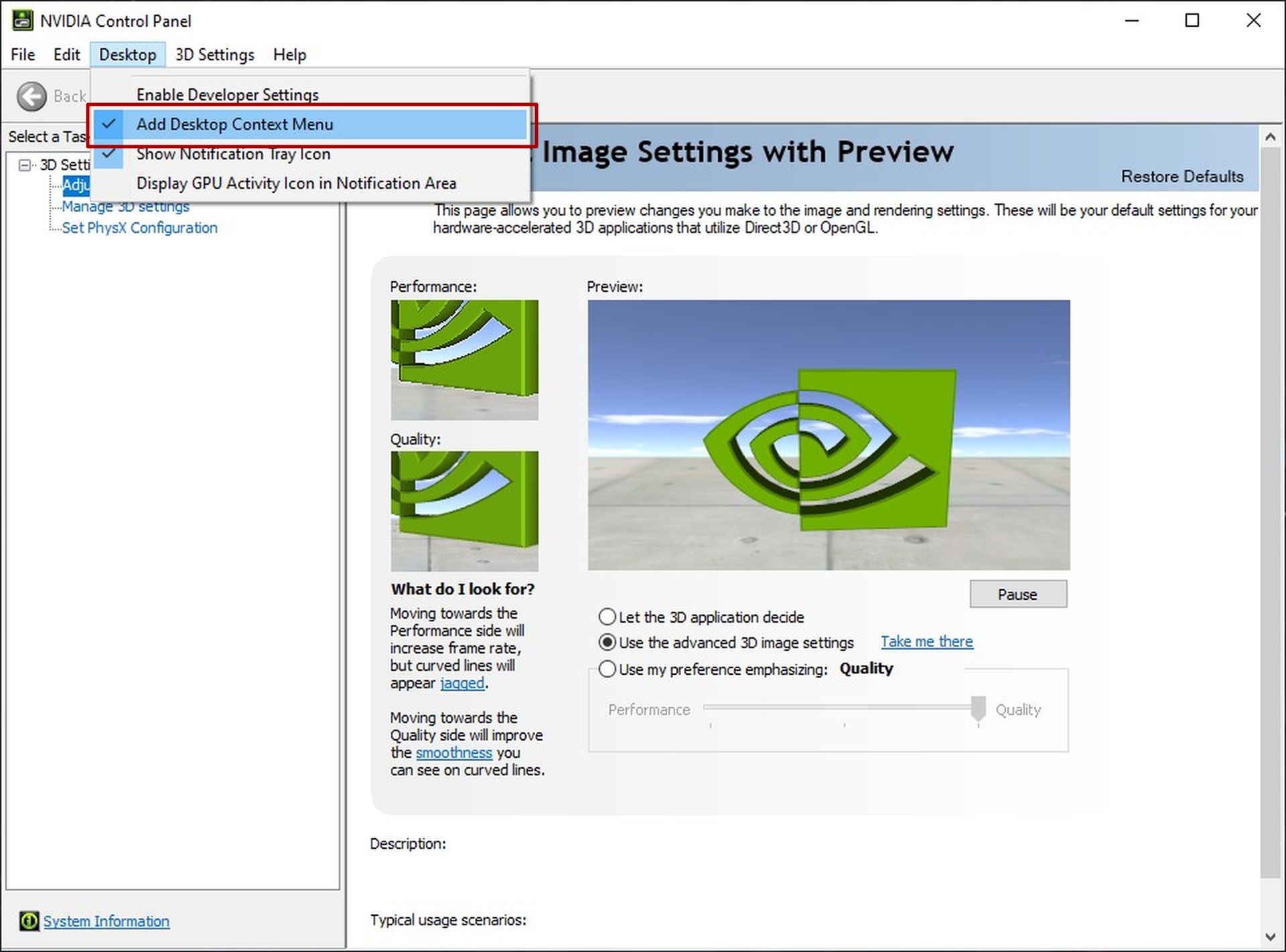
- From NVIDIA Control Panel, select the Desktop menu
- Check ”Add Desktop Context Menu”
If you’re sure NVIDIA Control Panel is not hidden, let’s dive into this step-by-step guide on How to fix the NVIDIA Control Panel not opening.
Method 1: Start the NVIDIA Control Panel again
Attempting to reopen the application after completely closing the NVIDIA Control Panel is the first step to take. Now we know it sounds simple but It resolves problems related to launching the application. If none of your NVIDIA Control Files are corrupted, the application should open normally. To do so:
- Open the Taskbar by right-clicking on your taskbar or by using the Windows command: CTRL+ALT+DEL
- Select NVIDIA Control Panel and then the End task button
- Open NVIDIA Control Panel from your desktop by right-clicking and selecting NVIDIA Control Panel from the opened menu
Method 2: Restart the NVIDIA Services from Windows Services
Your system receives some important services from NVIDIA. Likely, your program won’t operate as intended if these services are disabled. Fortunately, using the same techniques shown below, you can both solve and prevent this from happening.
- Press the Windows+R combination from your keyboard
- Type in ”services.msc” on the window opened and click Enter
- Find the “NVIDIA Display Container LS” service from the list and right-click on it.
- Select restart from the opened menu
- Repeat the same steps for the following other services: ”NVIDIA LocalSystem Container”, ”NVIDIA NetworkService Container”, and ”NVIDIA Telemetry Container”
Method 3: Update your NVIDIA drivers
The NVIDIA Control Panel not opening problem might be happening due to faulty drivers. In that case, NVIDIA will quickly publish a new driver for users to download. To update your graphics card’s driver:
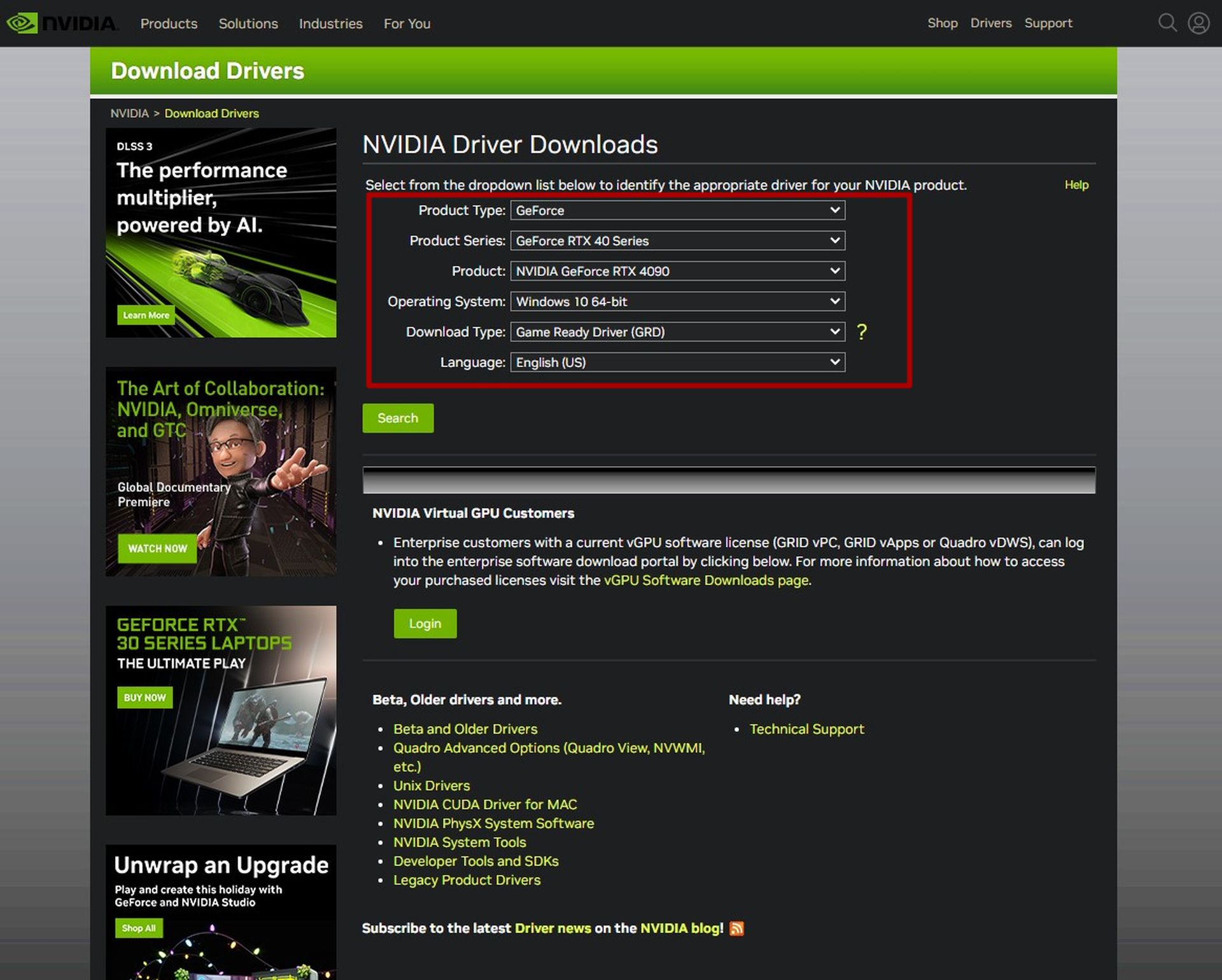
- Go to NVIDIA’s drivers’ update site
- Select your graphics card, Windows version and language from the menu
- Click on ”Search”
- The latest game-ready driver will be shown to you. Click on ”Download”
Method 4: End the NVIDIA Display Container process
The NVIDIA Display Container process might cause the NVIDIA Control Panel not opening problem. To restart the process, simply:
- Open the Task Manager as mentioned before
- If your Task Manager is in compact mode click the ”More details” option from the bottom left corner
- Click on ”Details”
- Find ”NV.Display.Container.exe” and right-click on it
- Select ”End task” and wait for it to restart itself
Method 5: Disable Fast Startup
The Fast Startup feature of Windows allows its users to start up their computers quickly but there’s a catch. It might cause some important services such as NVIDIA services not to start properly. To disable Fast Startup
- Open Control Panel
- Select Hardware and Sound
- Under the Power Options, select ”Choose what the power buttons do”
- Select ”Change settings that are currently unavailable”
- Uncheck the ”Turn on fast startup” section
And that covers all of our solutions to the NVIDIA Control Panel not working problem. We hope this guide was helpful to you. Now that you fixed your NVIDIA control panel maybe it’s time to learn How to open NVIDIA Overlay?