

With this article, you can learn How to get Jessie voice on TikTok and how to use the Text-to-speech feature. A growing venue for creators to express themselves online is TikTok. However, few voices on TikTok are as well-known as its built-in text-to-speech bot, “Jessie.” Jessie, who made his debut in May 2021 as an update to the previous default voice, has since taken on the role of the official narrator of many popular viral videos. You might be wondering how to use the TikTok text-to-speech feature if you’ve seen her upbeat candor in videos or the voices of her fellow preset text-to-speech bots Joey, Eddie, Chris, Alex, and Scream.
The fact that TikTok’s text-to-speech feature makes the app more accessible to anyone with visual impairments so they may watch TikToks without having to read any text on the screen is one of its major advantages. Since TikTok’s auto-captioning function has made it easier for artists to give closed captioning on their videos for people who are deaf, Deaf, or hard of hearing, it has already become somewhat of a normal practice. By simply activating the text-to-speech feature when you provide closed captions on a video, text-to-speech can be used in conjunction with closed captioning. It’s a simple way to make TikTok a more enjoyable place for everyone.
Here is a step-by-step tutorial on how to use TikTok’s text-to-speech capability if you want to add it to your own videos.

Check out the best AI tweet generators.
How to get Jessie voice on TikTok: Text-to-speech feature
In order to add text-to-speech to your next TikTok video, simply record it as normal on the app by tapping the + sign in the center of your bottom tab. Then, record the video as you normally would with a time limit of either 15 seconds, 30 seconds, or 3 minutes. When finished, edit your video by clicking the red checkmark in the bottom right corner of your screen.
Add whatever text you intend to use on your TikTok after that. To do this, simply type your message by clicking the “Aa” button at the bottom of your screen. (While you can add closed captions manually or automatically on TikTok, it’s not ideal to add text-to-speech to any captions that you’re already saying out loud in the video – as the text-to-speech voice will just talk over yours.) You can also format the appearance of your text, where it will appear on the screen, and at what point of the video it will appear.
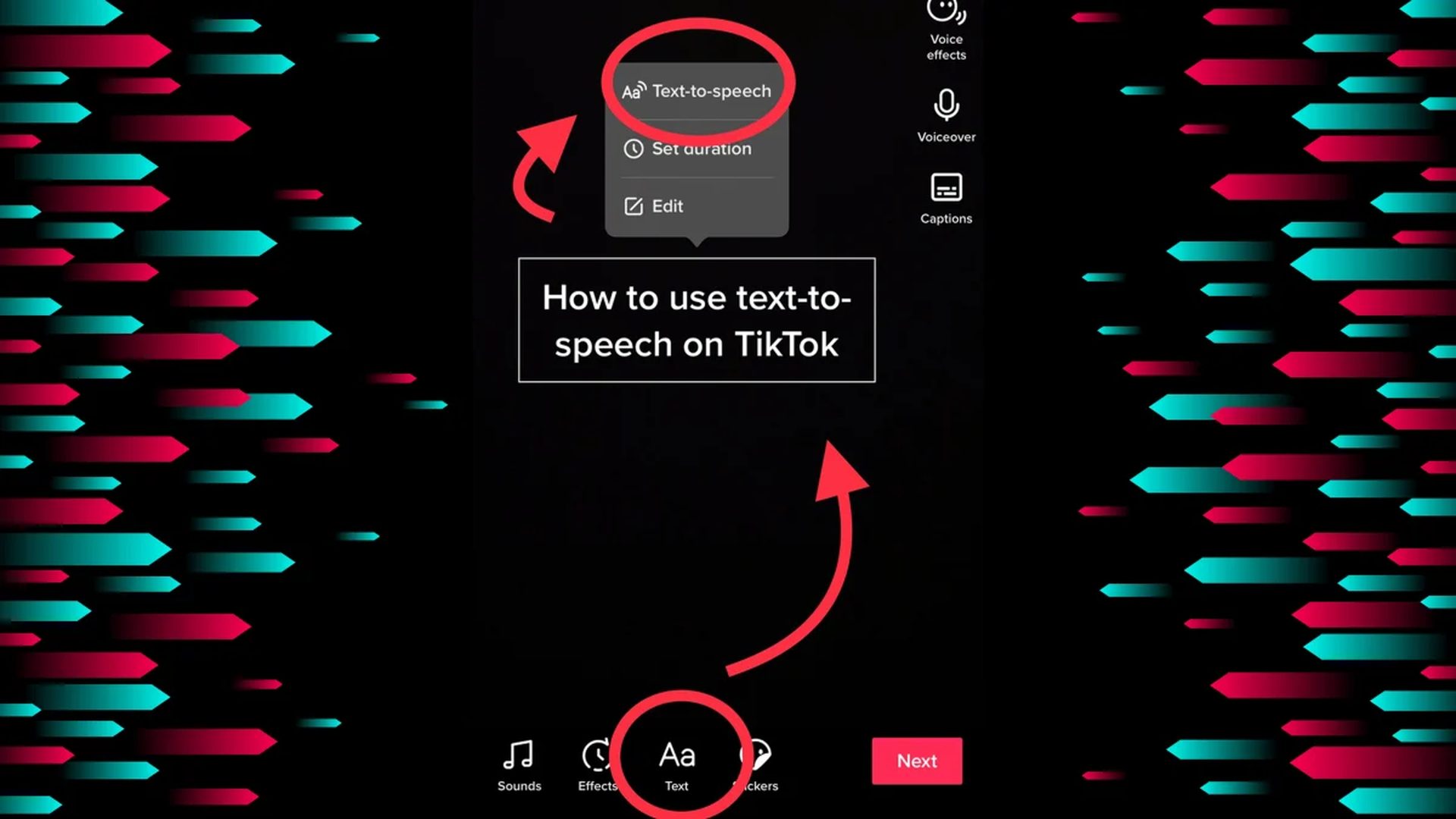
Once your material has been written out, there are two ways to include text-to-speech. While you’re still revising your content, you can choose text-to-speech by clicking the talking-head-shaped symbol, which is the third option from the left. Text-to-speech can be added to a video that already has text by clicking on the text and choosing the talking head icon.
You’ll then be given the option to select one of TikTok’s pre-programmed voices. Joey and Alex also have American accents, with Jessie serving as the default voice. Chris and Eddie have Australian accents, and Scream imitates Ghostface from Scream in his speech. Pick your preferred voice, and presto. The TikTok text-to-speech bot will begin reading your text right away.
@micslay This is DANGEROUS #voiceeffects #jessievoice
How do you get the voices on TikTok?
For text to be added to your video, choose the “Aa” icon. Enter the text you want the AI to read out loud, then click the third symbol from the left that resembles a talking head to choose text-to-speech. Then, a list of TikTok’s default voices will be presented to you.


