
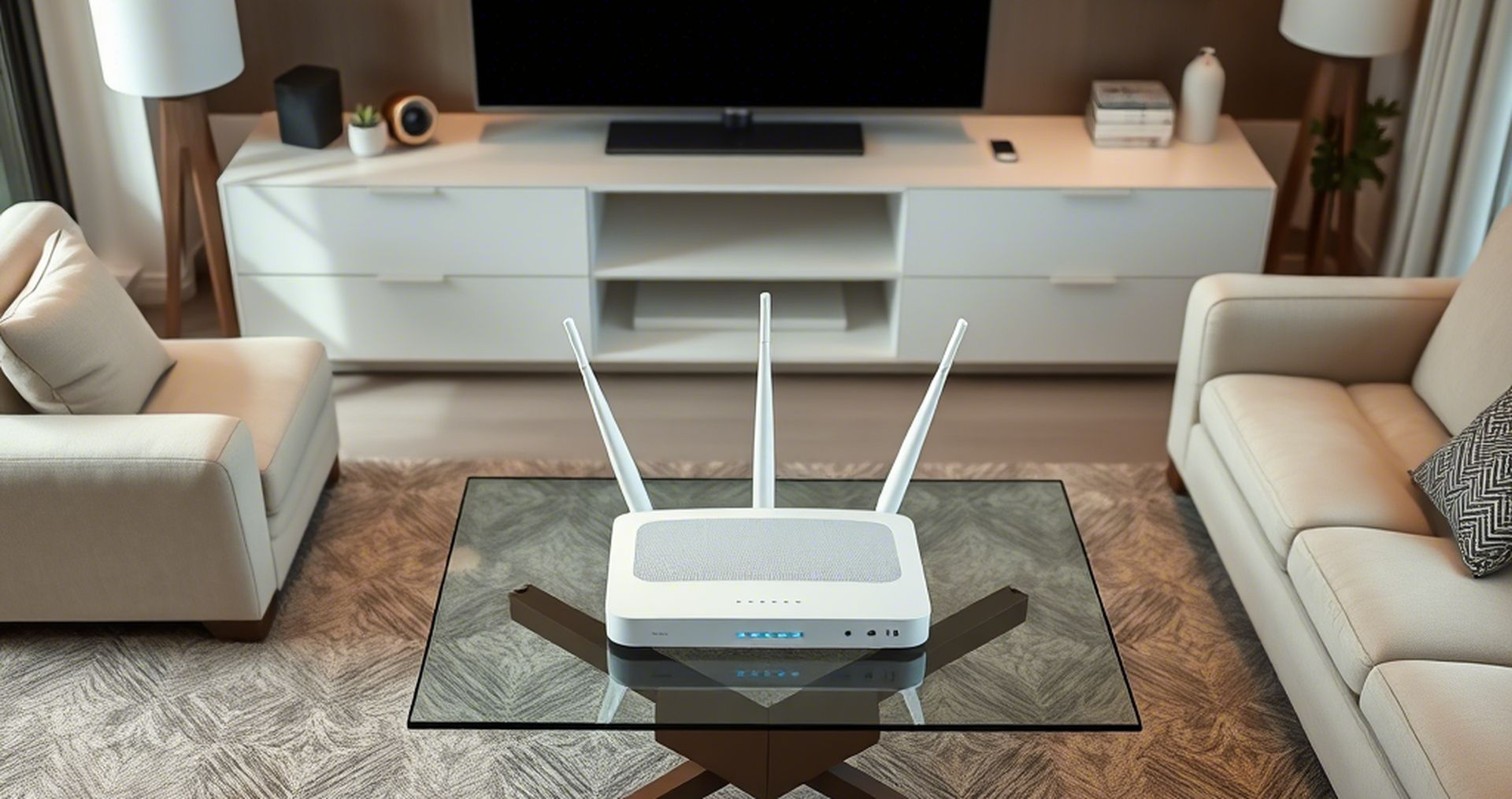

Struggling with slow or unstable Wi-Fi on your phone? While wireless networks have evolved, common issues like weak signals or interference persist. Here’s a focused guide to two critical steps for optimizing your mobile Wi-Fi experience.
1. Optimize your router placement
The router’s location significantly impacts signal strength. Weak signals often stem from distance, physical barriers (walls, furniture), or interference from appliances. Follow these tips:
- Centralize the router: Place it in a central area to ensure even coverage. Avoid corners or enclosed spaces.
- Avoid obstructions: Keep it away from metal objects, cabinets, or appliances like microwaves that disrupt signals.
- Elevate the router: Positioning it on a high shelf improves signal distribution.
- Minimize interference: Keep routers away from other wireless devices (e.g., Bluetooth speakers, cordless phones).
If relocation isn’t feasible, consider Wi-Fi extenders, PLCs (powerline adapters), or mesh networks to boost coverage.
2. Choose the right frequency band
Modern routers offer two bands: 2.4 GHz and 5 GHz. Each has trade-offs:
- 2.4 GHz: Longer range but slower speeds due to interference (ideal for distant devices).
- 5 GHz: Faster speeds but shorter range (best for close proximity).
Connect to 5 GHz for high-bandwidth tasks (streaming, gaming) near the router, and 2.4 GHz for broader coverage in distant areas. Check your network settings to switch bands—look for identifiers like “5G” or “PLUS” in the network name.
Additional quick fixes
- Forget and reconnect: Delete the network from your phone’s settings and reconnect to refresh the connection.
- Update software: Ensure your phone’s OS is updated for improved network management.
- Disable Bluetooth: Temporarily turn off Bluetooth if experiencing interference on the 2.4 GHz band.
By optimizing router placement and selecting the appropriate frequency band, you’ll create a stronger foundation for reliable mobile Wi-Fi performance.


