
TechBriefly
  • Tech
  • Business
  • Crypto
  • Science
  • Geek
  • How to
  • About
    • About TechBriefly
    • Terms and Conditions
    • Privacy Policy
    • Contact Us
    • Languages
      • 中文 (Chinese)
      • Dansk
      • Deutsch
      • Español
      • English
      • Français
      • Nederlands
      • Italiano
      • 日本语 (Japanese)
      • 한국인 (Korean)
      • Norsk
      • Polski
      • Português
      • Pусский (Russian)
      • Suomalainen
      • Svenska
No Result
View All Result
TechBriefly
Home How to
Android Theft Protection: How to secure your device if it’s stolen

Android Theft Protection: How to secure your device if it’s stolen

TB EditorbyTB Editor
4 March 2025
in How to
Reading Time: 2 mins read
Share on FacebookShare on Twitter

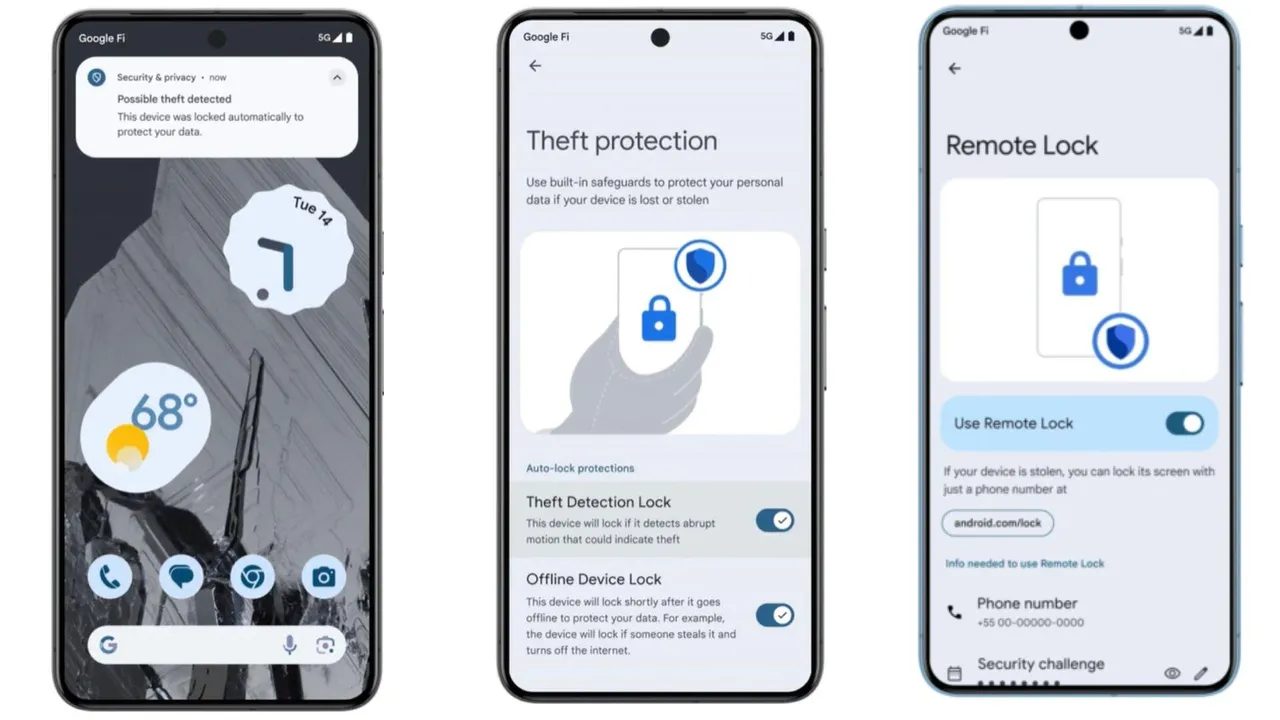
Android users now have a new tool to protect their devices with the Android Theft Protection feature. This security enhancement offers a suite of methods aimed at safeguarding your mobile and personal data if your device is stolen.

It’s a security feature that you can activate in your mobile settings, although it’s a little hidden. The core functionality of this feature lies in its ability to protect your phone the moment it’s snatched. Let’s say you’re phone is stolen, you can make several things happen. For example, the phone can be locked instantly so that whoever stole it can’t access your data.

Even if the thief attempts to disable remote tracking by enabling airplane mode, the phone can still automatically lock. To regain access after such a lock, users will need to enter a PIN or use their fingerprint. It’s not that the PIN is infallible, but this can make things very difficult for thieves, especially because then you can remotely erase the data.

The anti-theft protection is essentially a set of individual protections that you can enable, giving you control over the level and manner of security you want. These protections are available for devices running Android 10 and later.

The available options for the Android Theft Protection include:

  • Identity Verification: Requires identity verification via biometrics or security credentials to make changes affecting device security.
  • Anti-Theft Lock: Uses the phone’s sensors to detect theft, locking the screen when it senses someone running away with the device.
  • Offline Device Lock: Automatically locks the screen if the phone loses internet connectivity, securing the data.
  • Remote Lock: Enables users to lock their phone’s screen remotely using their phone number via android.com/lock.
  • Find and Erase Device Data: Allows users to locate their device or remotely erase data and reset the phone through the “Encontrar mi dispositivo” (Find My Device) feature.
Android Theft Protection: How to secure your device if it's stolenTo activate Android Theft Protection, follow these steps:

  1. Open the Settings app.
  2. Tap on Google Services, which may appear as Google or Google Serrvice Preferences on some devices.
  3. In the Google Services menu, select All Services.
  4. Scroll down to Personal and device security and tap on Theft Protection.
  5. On this screen, activate the desired protection options, configuring specific settings where necessary.

In the end, it’s about several types of protections that you can activate individually. This way, you decide to what extent you want to protect it and in what way you want to do it.

Tags: AndroidfeatureprotectionTheft
ShareTweet
TB Editor

TB Editor

Related Posts

How to tell if your iPhone or Android phone is carrier unlocked

How to tell if your iPhone or Android phone is carrier unlocked

16 January 2026
How to apply screen protectors without air bubbles

How to apply screen protectors without air bubbles

16 January 2026
How to check if someone read your message on iPhone or iPad

How to check if someone read your message on iPhone or iPad

16 January 2026
A guide to viewing calculation history on iOS 18

A guide to viewing calculation history on iOS 18

16 January 2026

LATEST

OpenAI rockets $250 million into Altman’s Merge Labs brain-AI bridge

Bluesky opens “Live Now” badges to all users to lure Twitch creators

Capcom reveals Resident Evil: Requiem classic mode and ink ribbons

How to tell if your iPhone or Android phone is carrier unlocked

Paramount+ slams subscribers with first price hike since 2024

Ashley St. Clair sues xAI over Grok deepfakes

Samsung launches instant-play cloud streaming in Mobile Gaming Hub update

Netflix secures Sony Pictures first-to-stream rights

How to apply screen protectors without air bubbles

How to check if someone read your message on iPhone or iPad

TechBriefly

© 2021 TechBriefly is a Linkmedya brand.

  • Tech
  • Business
  • Science
  • Geek
  • How to
  • About
  • Privacy
  • Terms
  • Contact
  • | Network Sites |
  • Digital Report
  • LeaderGamer

Follow Us

No Result
View All Result
  • Tech
  • Business
  • Crypto
  • Science
  • Geek
  • How to
  • About
    • About TechBriefly
    • Terms and Conditions
    • Privacy Policy
    • Contact Us
    • Languages
      • 中文 (Chinese)
      • Dansk
      • Deutsch
      • Español
      • English
      • Français
      • Nederlands
      • Italiano
      • 日本语 (Japanese)
      • 한국인 (Korean)
      • Norsk
      • Polski
      • Português
      • Pусский (Russian)
      • Suomalainen
      • Svenska