
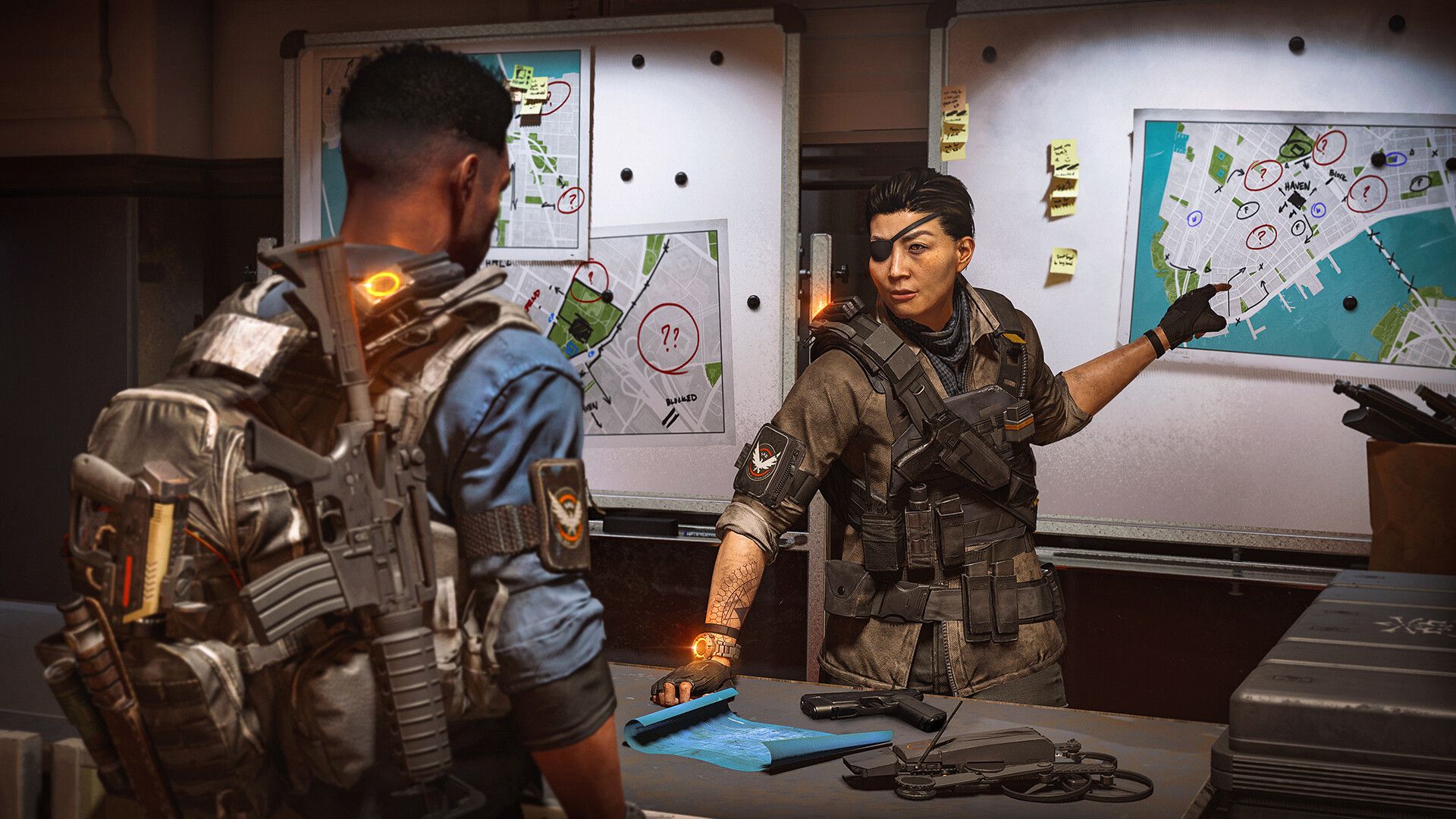

Wait! Is your Division 2 freezing too? It seems like it is quite a common problem and don’t worry dear gamer, we are here to help you out!
Tom Clancy’s The Division 2 is a fantastic open-world action RPG, but unfortunately, it’s not immune to the occasional technical hiccup. One of the most frustrating issues some players encounter is random freezing.
Sometimes it’s a brief stutter, other times it’s a complete lockup that requires a hard reset. It disrupts your missions, drags down your fun, and, understandably, can leave you wondering what the heck is going on.
Let’s try to fix Division 2 freezing issues from its roots!
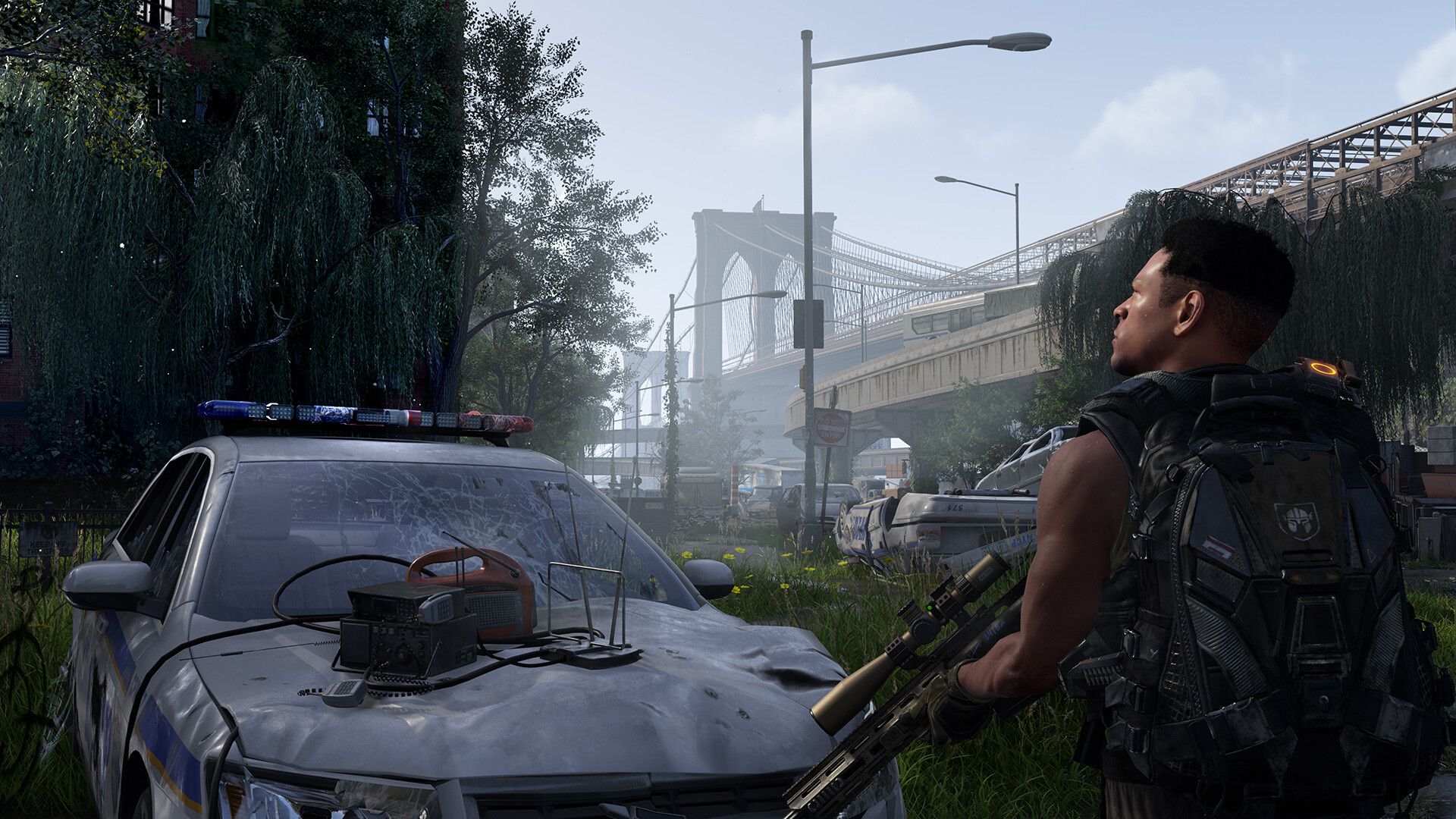
Why is Division 2 freezing?
Before jumping into solutions, let’s pinpoint why The Division 2 freezing issues occur. Several factors can be at play in the Division 2 stuttering issue.
Outdated graphics drivers are your biggest enemy as they can cause problems like Division 2 freezing occasionally. Your graphics card is like the engine of your gaming experience, and its drivers are the instructions that keep it running smoothly. Old or outdated drivers can result in all sorts of graphical glitches, including freezes.
Another possible factor behind the Division 2 freezing issue is hardware bottleneck. If your computer hardware (CPU, RAM, Graphics Card) doesn’t quite meet the minimum or recommended requirements of Division 2, it can struggle to keep up, leading to performance issues and frustrating freezes.
Other programs running in the background while you’re playing can sometimes “fight” for resources with The Division 2, causing the Division 2 freezing issues. This might include background apps, antivirus, overlay software, and more.
Computers also work hard, and they generate heat. When temperatures get too high, components can throttle back their performance to protect themselves, causing significant freezing or performance drops in games.
And most importantly, game files can get corrupted due to download errors or power glitches. This can cause all sorts of glitches, freezes included.
How to fix Division 2 stuttering issue
Now let’s tackle the Division 2 freezing problem head-on with a range of troubleshooting steps:
Update your graphics drivers
For NVIDIA cards, download the latest drivers directly from NVIDIA’s website or by using the NVIDIA driver update link here.
If you are an AMD user, you may download the latest AMD driver here.
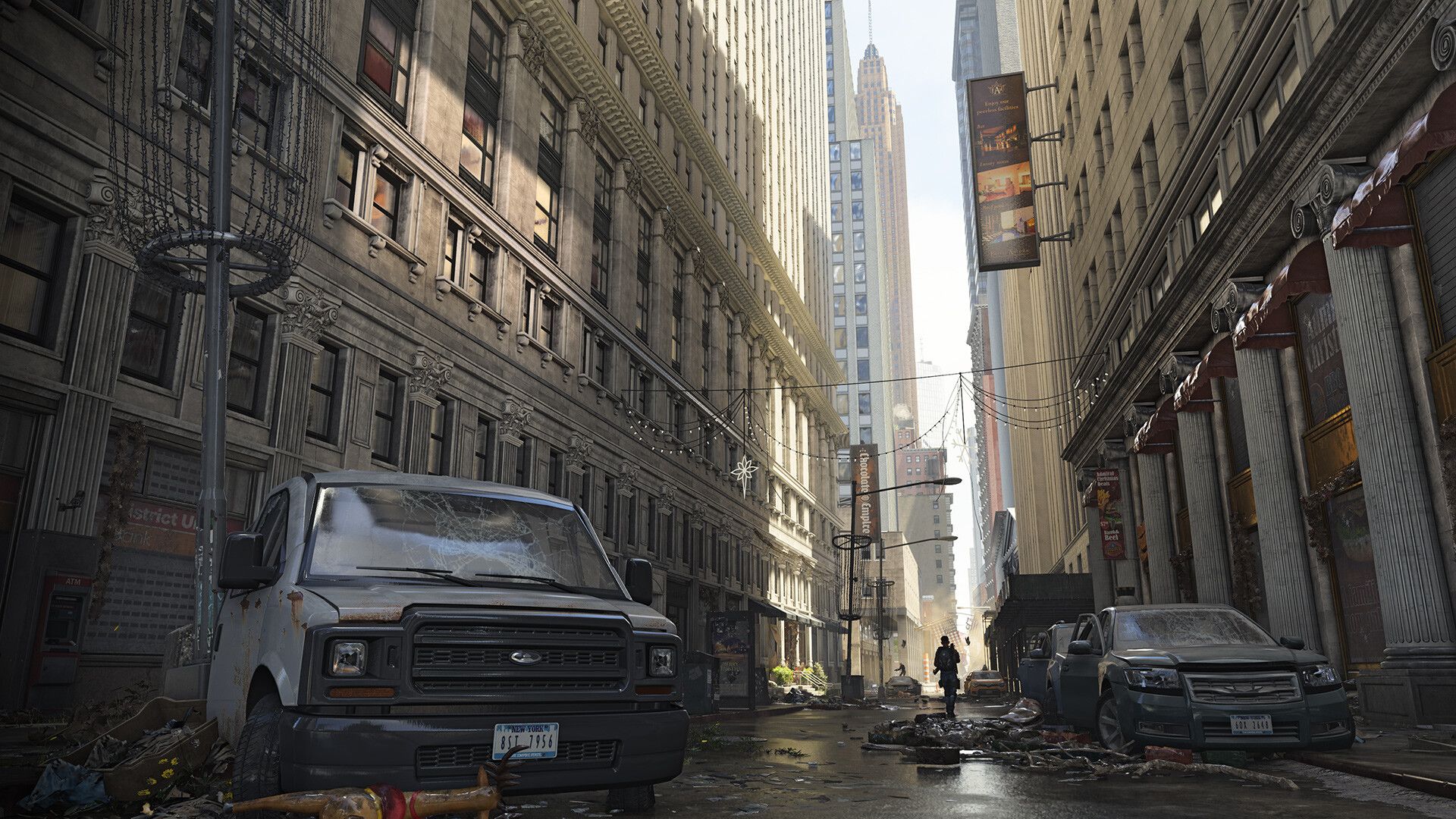
Check your minimum specs
If your hardware falls short, consider lowering in-game graphical settings or seeking upgrades. The lowest and recommended specs of Division 2 are as follows:
Minimum:
- OS: Originally released for Windows 7, the game can be played on Windows 10 and Windows 11 OS
- Processor: AMD FX 6350, Intel Core i5-2500K, or better (SSE 4.2 and AVX support required)
- Memory: 8 GB RAM
- Graphics: AMD R9 280X (3 GB), NVIDIA GeForce GTX 780 (3 GB with Shader Model 5.0+), or better
- DirectX: Version 11
- Storage: 77 GB available space
Recommended:
- OS: Originally released for Windows 7, the game can be played on Windows 10 and Windows 11 OS
- Processor: AMD Ryzen 5 1500x, Intel Core i7-4790, or better (SSE 4.2 and AVX support required)
- Memory: 8 GB RAM
- Graphics: AMD RX 480 (4 GB), NVIDIA GeForce GTX 970 (4 GB with Shader Model 6.0+), or better
- DirectX: Version 12
- Storage: 77 GB available space
Cut back on background processes
As mentioned before, background processes could be the main reason behind the Division 2 freezing issue. To do so:
- Open Task Manager
- Look for resource-heavy programs (web browsers, streaming software, etc.) under the “Processes” tab
- Right-click them and choose “End Task” before relaunching Division 2 to see if that helps
If you don’t know how to access it, check out how to open Task Manager on Windows 11.
Watch your heat
Download a temperature monitoring tool like HWMonitor to keep an eye on CPU and GPU temperatures while playing to see if the overheating is the reason behind the Division 2 stuttering issue.
If things are getting too hot (above 80-90 Celsius), improve airflow in your case, clean out dust, and potentially reapply thermal paste to your CPU.
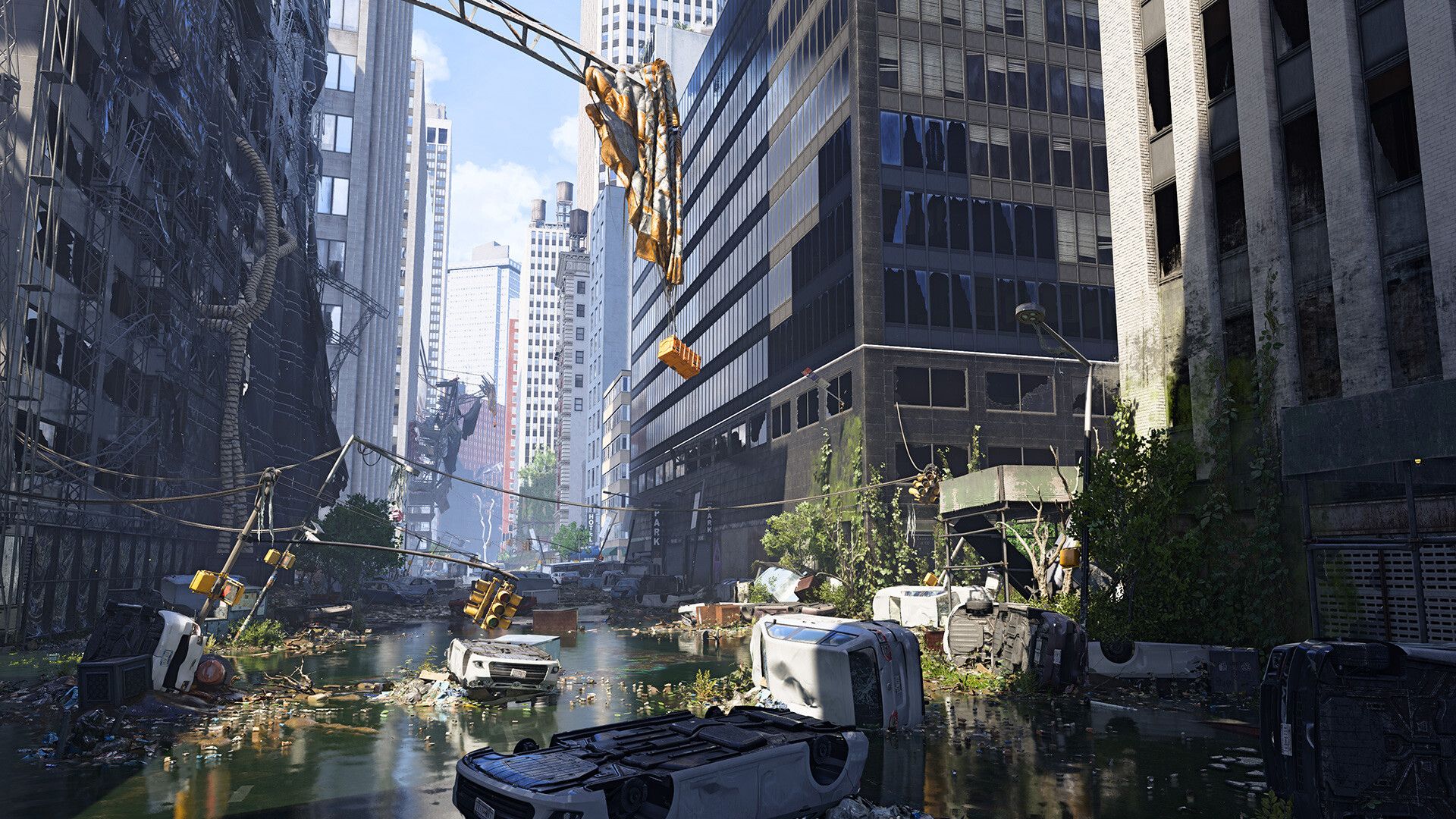
Verify game files
If you play on Steam or Ubisoft Connect, both platforms have a built-in “Verify Integrity of Game Files” function. Here is how to use it for Division 2 on both of the platforms:
Verifying Game Files on Steam
- Launch Steam and head to your “Library” tab where all your installed games are listed.
- Find Division 2 in your library
- Right-click on The Division 2 and select “Properties” from the dropdown menu
- Choose the “Local Files” tab on the left side of the Properties window
- Click the “Verify Integrity of Game Files” button. This initiates Steam’s file check process
Steam will compare installed game files with original copies on their servers. This might take a few minutes. If any problems are found, Steam will automatically redownload and replace corrupt or missing files.
Verifying Game Files on Ubisoft Connect
- Open your Ubisoft Connect PC client
- Navigate to the “Games” tab in Ubisoft Connect
- Locate The Division 2 entry in your games list
- Click the small, downward-facing arrow to the right of the ”Play” button for Division 2. This reveals additional options
- Select “Properties” from the dropdown menu
- In the Properties window, find the “Local Files” section and click on the “Verify Files” button
Ubisoft Connect will now validate your game files against their servers. Like Steam, any corrupted or missing files will be automatically re-downloaded and replaced.
While Division 2 freezing can be incredibly annoying, these steps should get you back to exploring the streets of Washington D.C. without interruptions. If issues persist, it’s time to consider deeper troubleshooting techniques or to consult Ubisoft using the link here.
Featured image credit: Tom Clancy’s The Division 2/Steam.


