

TechBriefly
  • Tech
  • Business
  • Crypto
  • Science
  • Geek
  • How to
  • About
    • About TechBriefly
    • Terms and Conditions
    • Privacy Policy
    • Contact Us
    • Languages
      • 中文 (Chinese)
      • Dansk
      • Deutsch
      • Español
      • English
      • Français
      • Nederlands
      • Italiano
      • 日本语 (Japanese)
      • 한국인 (Korean)
      • Norsk
      • Polski
      • Português
      • Pусский (Russian)
      • Suomalainen
      • Svenska
No Result
View All Result
TechBriefly
Home How to
How to turn a Macbook into a desktop Mac easily?

How to turn a Macbook into a desktop Mac easily?

Kerem GülenbyKerem Gülen
8 February 2021
in How to
Reading Time: 2 mins read
Share on FacebookShare on Twitter

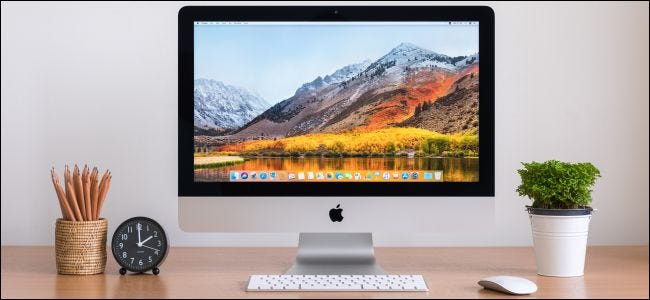
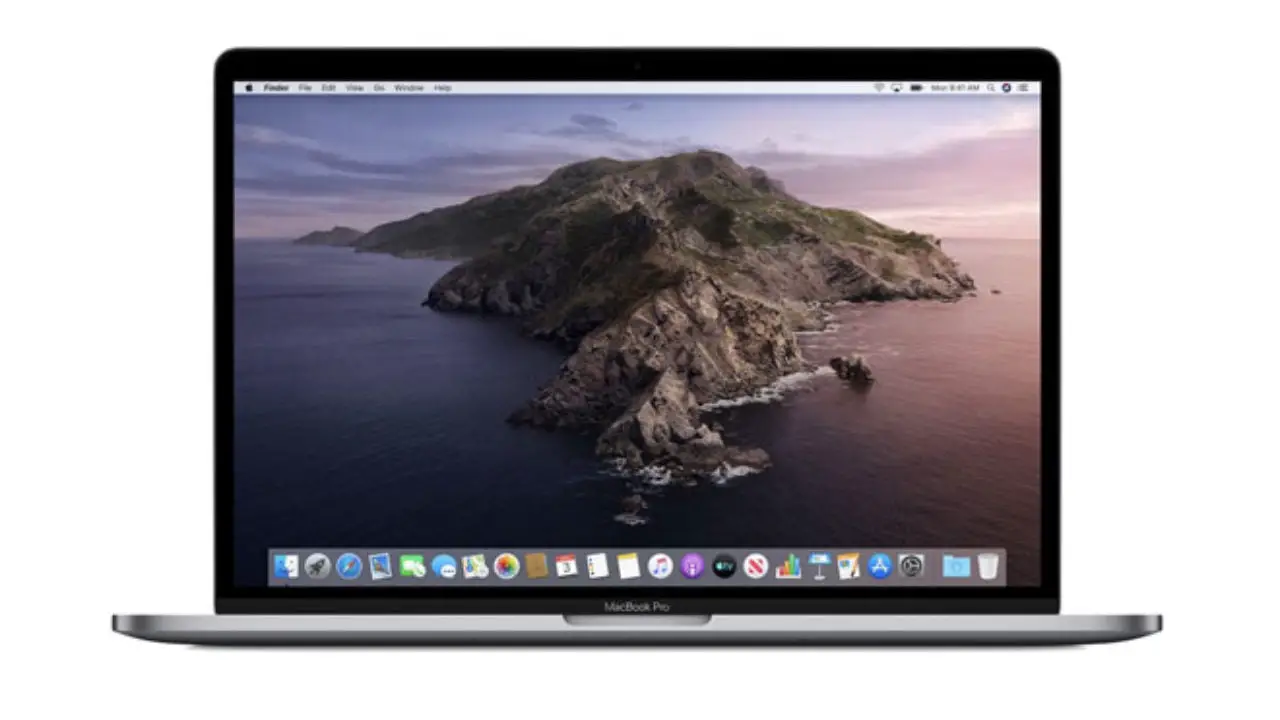
If you wonder how to turn a Macbook into a desktop Mac easily, we are going to show you the ways. A Macbook is an excellent option for work since we can take it anywhere.

When we are at home we can also continue to use the Apple laptop but if we use it for too long we may suffer some neck or back pain.

However, it is perfectly possible to continue working with our Macbook at home by turning it into a desktop Macbook. There are different options, which we will discover below.

How to turn a Macbook into a desktop Mac easily?

Use external monitors

Of course, before we buy an external monitor, we should understand what limitations our Macbook might have.

For example, if it has an HDMI connection, then we will only have to look for an external monitor compatible with HDMI.

But you have a version purchased after 2016, it will be necessary to look for an adapter that is compatible. On the other hand, in case we need to use several HDMI monitors at the same time, we would also need an adapter with several HDMI outputs.

Use an external keyboard

In case you want to go a little further and opt for an external keyboard, instead of the one built into the Macbook, you can opt for any keyboard with Bluetooth connectivity that you will find in stores. Of course, you can use Apple’s Magic Keyboard.

However, any keyboard with Bluetooth or USB connectivity will solve your problems.

Use an external mouse or trackpad

To have a full authentic desktop Mac experience, in addition to the external keyboard it is necessary to choose a mouse or a trackpad.

In case you already have experience with the Macbook’s multi-touch trackpad, if you want to emulate the same feeling and functionality, the best option is to choose Apple’s Magic Trackpad 2, since there will be, at least for the moment, nothing else like it in stores.
How to turn a Macbook into a desktop Mac easily?

Among the various functions it includes, it is perfectly possible to make the pinch-to-zoom gesture, scroll through the system or Web pages with your fingers, or, in short, perform any other compatible gestural function.

Use an external SSD for more storage

Although nowadays most Macbooks come with solid-state drives (SSDs), which are characterized by being tremendously fast and much more durable, you might want to have some extra space.

For this reason, you might want to buy one to be able to have a full desktop experience in your home.

Tags: Appledesktopguidehow tomacMacBookmacOSstep by steptutorial
ShareTweet
Kerem Gülen

Kerem Gülen

Kerem from Turkey has an insatiable curiosity for the latest advancements in tech gadgets and a knack for innovative thinking.With 3 years of experience in editorship and a childhood dream of becoming a journalist, Kerem has always been curious about the latest tech gadgets and is constantly seeking new ways to create.As a Master's student in Strategic Communications, Kerem is eager to learn more about the ever-evolving world of technology. His primary focuses are artificial intelligence and digital inclusion, and he delves into the most current and accurate information on these topics.

Related Posts

How to choose the right reset method for Samsung Galaxy devices

How to choose the right reset method for Samsung Galaxy devices

9 January 2026
What resetting end-to-end encryption does on iPhone, iPad or Mac

What resetting end-to-end encryption does on iPhone, iPad or Mac

9 January 2026
How to easily monitor your AT&T data usage and avoid overages

How to easily monitor your AT&T data usage and avoid overages

9 January 2026
How to reset your Bosch dishwasher when buttons won’t respond

How to reset your Bosch dishwasher when buttons won’t respond

9 January 2026
Please login to join discussion

LATEST

How to choose the right reset method for Samsung Galaxy devices

What resetting end-to-end encryption does on iPhone, iPad or Mac

How to easily monitor your AT&T data usage and avoid overages

How to reset your Bosch dishwasher when buttons won’t respond

Disney+ brings TikTok-style scrolling to its streaming app

Xbox reveals lineup for next Developer Direct: Fable, Forza and more

FIFA and TikTok partner to stream live World Cup clips

YouTube updates search filters to separate Shorts from long videos

Google introduces AI Inbox to organize Gmail tasks and updates

Announcements made by Samsung Display at CES 2026

TechBriefly

© 2021 TechBriefly is a Linkmedya brand.

  • Tech
  • Business
  • Science
  • Geek
  • How to
  • About
  • Privacy
  • Terms
  • Contact
  • | Network Sites |
  • Digital Report
  • LeaderGamer

Follow Us

No Result
View All Result
  • Tech
  • Business
  • Crypto
  • Science
  • Geek
  • How to
  • About
    • About TechBriefly
    • Terms and Conditions
    • Privacy Policy
    • Contact Us
    • Languages
      • 中文 (Chinese)
      • Dansk
      • Deutsch
      • Español
      • English
      • Français
      • Nederlands
      • Italiano
      • 日本语 (Japanese)
      • 한국인 (Korean)
      • Norsk
      • Polski
      • Português
      • Pусский (Russian)
      • Suomalainen
      • Svenska